What's new
Photoshop Gurus Forum

Welcome to Photoshop Gurus forum. Register a free account today to become a member! It's completely free. Once signed in, you'll enjoy an ad-free experience and be able to participate on this site by adding your own topics and posts, as well as connect with other members through your own private inbox!

Fixing a scanned patch


mmaust007

New Member
Messages
3
Likes
0
Hi,

So here's what I've got. I've got a scanned image of the unit patch...the problem is the image shows the thread lines, which equate to different colors. I need to normalize the colors across the entire image...i.e the helicopter should be solid black and the background solid red etc. Not much of a photoshop guy but I'm learning OJT it seems. Any help is appreciated. I have both photoshop CS5 and Illustrator so whichever works best I'm game to use.

I've attached the image in question.C Co..png

 
Hello,
I would make selection based on "Color range" for each color and then use brush inside selection to apply the exact one color you want. You have to play with Fuzziness a bit to pick exactly what you want.
Best regards,
Peter
 
I work in Photoshop for the most part so I can't tell you what you might do in Illustrator. As Peter says, color range can work if you combine it with masking, color-fill layers, and keep the base layer

You'll have to set the color range fuzziness high enough to sample neighboring blacks, dark greys, etc., but not so fuzzy as to start including other colors.

Each time you isolate a color try making a mask with the selection, then make a new layer above.

Ctl/cmd click on the mask thumbnail and fill this selection with the color you want.

Keep the base layer active and it will help even out the small selection defects.

Some areas you may need fill in by hand or trace with a pen tool or just zoom in really close and make a selection. For the numbers in the banner it would be best to redo them. The large text seems fine. Here's a screen capture example of the red and the black using this approach:

Unit_Patch.PNG
 
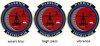
That's not a bad technique. I used similar settings. The results were far easier and faster of course, but I wasn't satisfied with the result. The smart blur smoothed things out but made the colors dull and overall it needs sharpening. So I used the high pass filter at 4, set to overlay and about 40-50% opacity on fade. Any more creates artifact in the red field around the helicopters, and though the sharpening increased the vibrance slightly, I thought it was not enough. So I added a vibrance adjustment layer and slightly increased the saturation. But that is a personal preference.

I still don't like the colors but then the scan of the patch unfortunately makes them look muddy.

I would also suggest that for the basic geometric shapes, mainly the circles and arcs, that some vector shapes are used to crisp up the edges. That is what I would do anyway. I think this method could work pretty well for most of the colors, but I'd suggest selecting all the red and replacing it by the method I described above. Hope we're helping!
 
Last edited:
Here are my steps using just the smart blur (as SCTRWD suggested), high pass sharpening, and increased saturation (using vibrance adjustment layer). It's pretty good, though on higher magnification, like I said, it might not be good enough.

3_patches.jpg
 
Last edited:
The smart blur seems to be working out great so far....this is eventually going to end up sublimated onto a coffee mug....I got volun-told I was going to be heading up this lil nightmare.

For my next problem...is there a way to edit small portions of the image...for example the Cav flag should be outlined in black all the way around...or should i transfer it to paint and try to edit the pixels there?

I think I'm going to go invest in a photoshop for dummies book somewhere lol
 

Back
Top