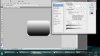
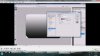
I have a video that I am including in this post. I am following the video click per click with my Photoshop cs5. Every I am doing is matching up perfectly until I get to 2:38 in the video. I have a screenshot also included at that exact point of the video and a screenshot is included showing what I have as well. Now it could be that my Photoshop is just by chance showing it different. But on the video where they are showing the little clock looking thing and where he has the gradients showing, mine doesn’t show this. I am attempting to do my first gradient for a site and it is a clickable tab that will take you to another page and it has to be red fading to blue with an overlay (that I have not gotten in my head how the overlay needs to be) and must be an oval or an oblong oval.
Any help is appreciated and if you have any suggestions of an easier way to get this done then I am game to try it.
Any help is appreciated and if you have any suggestions of an easier way to get this done then I am game to try it.