What's new
Photoshop Gurus Forum

Welcome to Photoshop Gurus forum. Register a free account today to become a member! It's completely free. Once signed in, you'll enjoy an ad-free experience and be able to participate on this site by adding your own topics and posts, as well as connect with other members through your own private inbox!

Grouping a Photo and 3 Text Boxes


Skeezix

Member
Messages
16
Likes
1
I am using Photoshop version 7 to make business cards. Each card is 2"x3.5" and there are 10 cards per sheet of paper. I am familiar with version 7 since I got it over 20 years ago.

The first card has a small photo, a name, a phone number, and an email address. I have positioned those objects exactly where I need them in the top left-hand corner of the page.
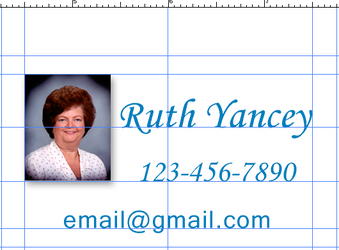


20260418 Businss card layout 01.png
My question is can I somehow group those 4 objects and then move the group over to the next card location? Then repeat the operation for each of the remaining business cards? If so, can somebody tell me where I can find instructions to do this?

Thank you
 
Assuming that each is on a seperate layer, group these layers so that they all can be moved together. This video HERE should help.

Cheers.
 
My question is can I somehow group those 4 objects and then move the group over to the next card location?
You say objects. Do you mean layers? Are each of these "objects" on their own layers? Is the photo on it's own layer? Is the "Name" on it's own layer? Is the "Phone Number" on it's own layer? Is the "Email Addy" on it's own layer? If so, just group the layers, duplicate the group, and move it to it's new position on the sheet. Then change the info, duplicate and move. Repeat this until your have all 10 positions populated.

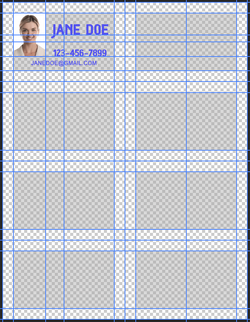
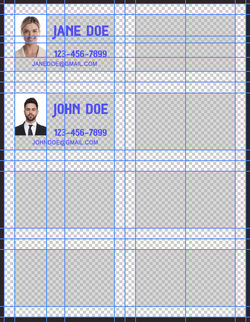
Template with one card position populated.
Screen Shot 2026-04-18 at 12.41.37 PM.png

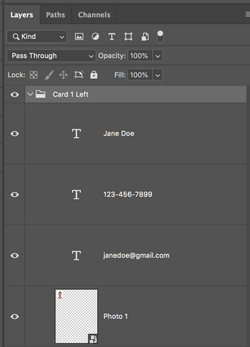
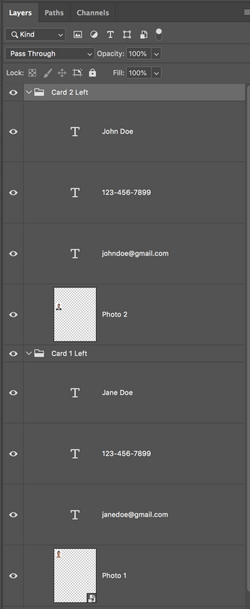
Card 1 layers are in a group.
Screen Shot 2026-04-18 at 12.41.51 PM.png

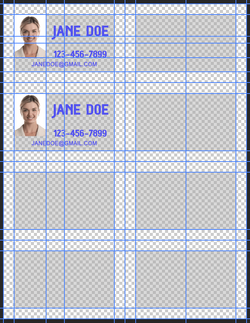
Duplicate the group using Command + J
Move the duplicated group using the Move Tool, to it's new position.
Screen Shot 2026-04-18 at 12.42.41 PM.png

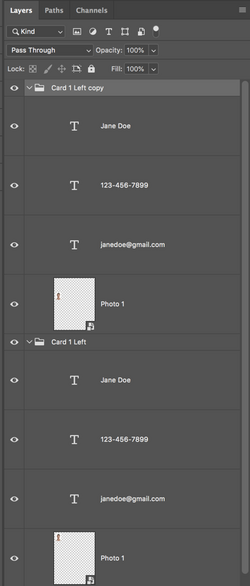
Layers panel with new (duplicated) group.
Screen Shot 2026-04-18 at 12.42.58 PM.png

You can now change the photo and information in the new group as well as renaming the group.
Screen Shot 2026-04-18 at 12.57.13 PM.png
Screen Shot 2026-04-18 at 1.07.44 PM.png
 

Back
Top