What's new
Photoshop Gurus Forum

Welcome to Photoshop Gurus forum. Register a free account today to become a member! It's completely free. Once signed in, you'll enjoy an ad-free experience and be able to participate on this site by adding your own topics and posts, as well as connect with other members through your own private inbox!

Hand-coloured effect


Vhagar

New Member
Messages
3
Likes
0
Hello there.

Well, I enjoy to make digital painting, despite my lack of ability and a tablet to paint with...

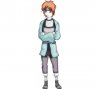
Here one of my job from my Deviant (Spaceman258)
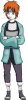
kyuubi__s_breakout__new_mugicha_akame_by_spaceman258-d4vt26l.png

I did the lines with illustrator and colours and shadow/light with photoshop (with smudge tool and blur effect).

The thing is: there's a way to make the painting looks like it was hand-coloured?

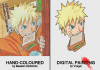
My desire is to make it looks like this:
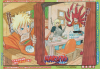
Chapter_503.png

Maybe a pattern and a layer with an effect or a paper texture. I don't want it to look the same, surelly it is impossibly, but problably there's a way to make it looks more "professional". I'm a newbie with this stuff and internet only gave me creased paper texture, that I'm not sure how to use.
 
Hey Vaghar,

I think you mean cel shading, If so it's pretty easy and fun to do..
Here is the result:
Cel Shading.jpg
And here is how you do it:
In photoshop:
- Duplicate your image
- Select the top layer and go to Filter - Stylize - Trace contour
- With the top still selected press Ctrl+I to invert layer
- Then go to Image - Adjustments - Desaturate
- Go to Blending mode and change it to Overlay
- go to fill and reduce it to about 80%

And voila that's one way you could do it...
Hopefully this was what you're looking for..

If not you could also check in filters, artistic, sketch etc...
 
Hey Vaghar,

I think you mean cel shading, If so it's pretty easy and fun to do..
Here is the result:
View attachment 16784
And here is how you do it:
In photoshop:
- Duplicate your image
- Select the top layer and go to Filter - Stylize - Trace contour
- With the top still selected press Ctrl+I to invert layer
- Then go to Image - Adjustments - Desaturate
- Go to Blending mode and change it to Overlay
- go to fill and reduce it to about 80%

And voila that's one way you could do it...
Hopefully this was what you're looking for..

If not you could also check in filters, artistic, sketch etc...

Thank you for you help, but that is not what I'm looking for.

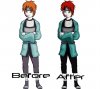
I did a quick line and painting only for illustrate what I want to do:
riIjv.png
I want to make it less "digital" and more "hand-coloured".
 
Hi Vhagar, welcome to the forum.

This is not my area, but the only difference I see is that your spaceman's shadows and color separations are more painterly, more "realistic" and soft than the technique you want to mimic. You'll need to give up some of the prettiness you made and sharpen up the edges and the shapes. The hair depiction for instance is sharp and jagged. Your version is soft and the shading follows the drawn contour. I think you simply need to examine the details, compare them to yours, and use them as a guide.

That's my take, but hopefully someone with more experience will have some advice.
 
Untitled-1.jpg

How about this?
This is the closest hand-color effect I could do..

- I simply duplicated the picture
- filter - artistic - colored pensil
- reduce the opacity to your needs
 
Last edited:
Hi Vhagar, welcome to the forum.

This is not my area, but the only difference I see is that your spaceman's shadows and color separations are more painterly, more "realistic" and soft than the technique you want to mimic. You'll need to give up some of the prettiness you made and sharpen up the edges and the shapes. The hair depiction for instance is sharp and jagged. Your version is soft and the shading follows the drawn contour. I think you simply need to examine the details, compare them to yours, and use them as a guide.

That's my take, but hopefully someone with more experience will have some advice.


I guess you're right, I never thought I was doing it with too much care and it isn't Kishi style. It's easy painting in photoshop, there's more tools... Thanks for the comment and the good words.
View attachment 16793

How about this?
This is the closest hand-color effect I could do..

- I simply duplicated the picture
- filter - artistic - colored pensil
- reduce the opacity to your needs

A good effect, indeed. I'm going to practice it. Thank you!
 
Vhagar,

You may get even more responses from cartoon illustrators if you make a new thread with a more specific title asking how to get this particular cartoon effect, rather then saying hand-drawn. I would mention the name of the genre of cartoon character.

In the body of the thread, just word a simple request for suggestions on techniques to create the effect you want on your own illustration.

And if I didn't already say so, nice work.
 
Thank you for you help, but that is not what I'm looking for.

I did a quick line and painting only for illustrate what I want to do:I want to make it less "digital" and more "hand-coloured".


Try this -

Have the hair's primary fill color on one layer, then the darker shading on a layer above it.

Adjust the opacity of the layer, or erase portions of it while adjusting the opacity of the eraser.

If you have some grunge brushes, use them to erase and get an uneven effect.


Agent
 

Back
Top