What's new
Photoshop Gurus Forum

Welcome to Photoshop Gurus forum. Register a free account today to become a member! It's completely free. Once signed in, you'll enjoy an ad-free experience and be able to participate on this site by adding your own topics and posts, as well as connect with other members through your own private inbox!

HELP how do i create this grungy/dreamy effect on visualations?


architecturestudent

New Member
Messages
3
Likes
0
hi all,
new to the forum today!

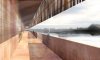
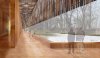
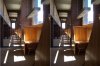
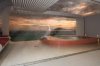
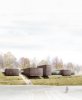
im an architecture student and love this style of presenting buildings (see attached images). the renders have a dreamy/soft effect which i think would suit my project well. how on earth do i replicate something similar? is it a grunge brush? is it opacity? is it some other tactic?

any thoughts or tips welcome!
 

Attachments

  • RCR Arquitectes . museu Soulages . Rodés.jpg
    RCR Arquitectes . museu Soulages . Rodés.jpg
    38.6 KB · Views: 25
  • RCR Arquitectes . Coussée & Goris Architecten . Crematorio . Hofheide (4).jpg
    RCR Arquitectes . Coussée & Goris Architecten . Crematorio . Hofheide (4).jpg
    60.3 KB · Views: 2
  • RCR Arquitectes . Coussée & Goris Architecten . Crematorio . Hofheide (3).jpg
    RCR Arquitectes . Coussée & Goris Architecten . Crematorio . Hofheide (3).jpg
    76.7 KB · Views: 2
I see a lot of opacity being played with along with contrast with numerous layers
 
Bunches of transparent layers with big portions masked out and some very faint cloud layers too. Some desaturation, contrast work, etc.

Basically you just play until you get the look you want. :)
 
In addition to what iDad and Sierra advise, I would say that the key is working with light and texture. If you get those down, the rest is a matter of layers and ghost-like imagery. Play around with filters and adjustment layers, especially the levels or curves adjustments.

Decrease the effects of these alterations and experiment: change the blend modes of layers, lower the layer opacity, paint on a filter or adjustment mask. I always make smart objects if I play with filters because of the ease of changing the settings and for the filter mask which I can paint on to change the areas affected. I think the first example uses some selective sharpening and may use a mask to remove some of the sandstone texture effect which has been enhanced through sharpening. Just my take. I'd have to try to replicate it to get a better idea.

Like sierra said, you have to play with the different ideas. Here for an example, I changed a section of brick wall and a section of wooden desk area. I used underpainting filters on both and changed the layer opacities with a normal, original layer below. I also did a levels adj. on the brick wall, moving the white point and gamma sliders over to the left.

LibraryKahnCompos.jpg

Well, I hope you find your way into getting these effects. If you find someting that works really well for you, please come back and post your work. I'm sure we'd love to see it.
 
..... paint on a filter or adjustment mask. I always make smart objects if I play with filters because of the ease of changing the settings and for the filter mask which I can paint on to change the areas affected. I think the first example uses some selective sharpening and may use a mask to remove some of the sandstone texture effect which has been enhanced through sharpening. Just my take. I'd have to try to replicate it to get a better idea.

Like sierra said, you have to play with the different ideas. Here for an example, I changed a section of brick wall and a section of wooden desk area. I used underpainting filters on both and changed the layer opacities with a normal, original layer below. I also did a levels adj. on the brick wall, moving the white point and gamma sliders over to the left.

View attachment 15364

Well, I hope you find your way into getting these effects. If you find someting that works really well for you, please come back and post your work. I'm sure we'd love to see it.

hi thank you this is really helpful and i appreciate your experiements i can see the beginning of the style in what you've tried already!. but could you please explain 'underpainting filters' a bit more. im not sure what you mean by this? not very clued up on filters except the preset ones in photoshop (if thats what you mean at all!)

many thanks
 
hi thank you this is really helpful and i appreciate your experiements i can see the beginning of the style in what you've tried already!. but could you please explain 'underpainting filters' a bit more. im not sure what you mean by this? not very clued up on filters except the preset ones in photoshop (if thats what you mean at all!)

many thanks


The Underpainting filter makes a layer look as if it were on a textured background. You can set the brush size, texture coverage area, and texture options. Go to Filter>Artistic>Underpainting
 
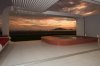
Hi student! I played around with some effects and this is what I came up with. Again just some ideas and no idea if they are anything like what the original artist did. But that is how you come up with signature effects. Experimenting :mrgreen:

SunrayBldg.jpg

SunrayBldgOrig.jpg

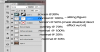
and to give you an idea of what I did to achieve this, here's a screen capture of the layers. The filters are included in layer title, layer blend mode and opacity I've added:

Capture.PNG
 

Back
Top