What's new
Photoshop Gurus Forum

Welcome to Photoshop Gurus forum. Register a free account today to become a member! It's completely free. Once signed in, you'll enjoy an ad-free experience and be able to participate on this site by adding your own topics and posts, as well as connect with other members through your own private inbox!

Help to improve


Jantonio777

Active Member
Messages
27
Likes
1
Hello, I just want to received advises how to improve the sky in this panoramic, I don't know how to change the color of the sky the day was very hazy, also if the rest of the shoot needs some improvement all the advises are welcome. Thank you.Castle_zpscbae2c55.jpg
 
If you really want color that pops, do this. Make 2 new layers. Then, change the mode to Lab color (don't flatten the image when PS asks). Once in Lab, open curves from the Image/Adjustments (no adjustment layer) . You will only have an a and b channel. Move your sliders however you like, but move each end an equal amount. Then, before you change it back to RGB color, blend the layers using Color as your blending mode. Try that and see if that doesn't work for you.
Castle_zpscbae2c55.jpg
 
Last edited:
I isolated the sky and created a layer mask.

I then added a Hue & Saturation level which I clipped to a copy/duplicate of the original. I bumped the hue & sat up just a little. (You could use a curves layer here as well.)

I then copied the masked layer, highlighted the layer, clicked on the layer mask and hit cmd/cntrl + I to invert.

I then added a curves layer adjustment, clipped this to the new layer, and played with the adjustment until I liked it.

Castle_zpscbae2c55_03.png
 
Last edited:
Attached are a series of images that shows how I would handle such an image:

#1 - The original, as posted, for reference.

#2 - My 1st step, and the most significant changes were made using nothing more than ACR. This shows the image as it came out of ACR.

#3 - Although ACR improved the image in some way, it also made some flaws more apparent. For example, there are blotches in the sky that suggest that you might have stitched this panorama together from individual photos. These must be dealt with. In addition, the sky in the upper LH corner is much too bright. The left-right variation in sky brightness must be dealt with. I did this by making a copy of the sky, using horizontal motion blur to smooth out some of these variations. This did not completely equalize the L-R brightness variation, so I made a copy of the blurred sky, flipped it horizontally, and added a bit of the flipped version to original. I used a hand painted layer mask to only apply it where it was needed. The result of this is shown in the 3rd attachment.

There are a few other very minor tweaks needed to put the finishing touches on the image. For example reducing the contrast of the castle and forest.

I know the above sounds like it is a lot of work, but it really isn't. Once you are used to making a series of simple changes like these, you can zip through them faster than you can describe them in writing.

HTH,

Tom

PS - Of course, in PS, it's very tempting to make the sky an even more intense blue than shown here. Resist this urge -- it will look completely unrealistic / silly.
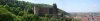
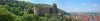
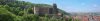
Castle_zpscbae2c55-00_orig.jpg

Castle_zpscbae2c55-tjm01_acr-ps01a-01_acr_only.jpg

Castle_zpscbae2c55-tjm01_acr-ps01a-02_acr_plus_ps.jpg
 

Back
Top