
What's new
Photoshop Gurus Forum

Welcome to Photoshop Gurus forum. Register a free account today to become a member! It's completely free. Once signed in, you'll enjoy an ad-free experience and be able to participate on this site by adding your own topics and posts, as well as connect with other members through your own private inbox!

Help with effect


YoungLeiva

Member
Messages
11
Likes
2
Hi, I'm not sure if you guys have seen the shock top logo.. pretty cool orange lol. I'm trying to kind of put 3 letters in the Mohawk but make it looks likes its dyed...
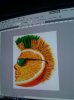
uploadfromtaptalk1335845812082.jpg

Something like that.. if you guys can help me out with ways to do it.. I did the T but the rest of the letters don't flow with the Mohawk like that one..

Sent from my HTC Glacier using Tapatalk
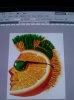
 
I tried but its not coming out the same way.. I'm wondering if there's a certain way to do it.. I just got lucky with the T

Sent from my HTC Glacier using Tapatalk
 
1. add a new layer on top and set its layer mode to "color"
2. select a hard brush tool
3. choose a green as your color and just draw in the next 2 letters . because the layer mode is now set to color, it will change the color of the mohawk to green wherever you paint on it.
 
I'll try that when I get to my computer... I did this earlier but I don't like how the S came out or how it blends..

uploadfromtaptalk1335850268408.jpg
Sent from my HTC Glacier using Tapatalk
 
I tried the way you explained, but I get the same effect as the "S" on the picture I posted. I was wondering if there was a way to make it more like the "T" I made.. looks like its part of the hair. I really don't know why that one came out good and the rest of the letters won't.

Sent from my HTC Glacier using Tapatalk
 
for the "S", keep it the way you have it, and just select through all the layer's blending modes (normal, multiply, overlay, etc) until it achieves what you want. "Color" may have not been the exact blending mode you need- try scrolling through them all.
 

Back
Top