What's new
Photoshop Gurus Forum

Welcome to Photoshop Gurus forum. Register a free account today to become a member! It's completely free. Once signed in, you'll enjoy an ad-free experience and be able to participate on this site by adding your own topics and posts, as well as connect with other members through your own private inbox!

How do I make a specific area of an image transparent.


Luzarin

Active Member
Messages
35
Likes
2
There are 2 images in separate layers. I want the a part of the top image to be a little transparent for the 2nd image to show through.

I tried playing around with brushes and the flow, but all it does is a streak of white or black :eek: .

Thanks alot for any advice :razz:
 
On another note, is there a way to soften the edges of an image ? Mine looks extremely rectangular at the sides =/.

Blur tool, dodge tool doesn't seem to work at all.. no visible effect.

My skills are really mediocre.
 
Just lower the opacity of your brush when making the hidden layer visible.
 
You can also increase the feathering rate of the brush you're using to achieve this. When you're done, let's see the image you're working on. We like to know how well our advice is paying off. It also helps us to know if we're properly visualizing what members are looking for when they ask questions.
 
You can also increase the feathering rate of the brush you're using to achieve this. When you're done, let's see the image you're working on. We like to know how well our advice is paying off. It also helps us to know if we're properly visualizing what members are looking for when they ask questions.

How do I brush with the feather option ? Under brush tool, there isn't any feathering option =X .
Yup good idea.. I will attach the image after doing it =D
 
Go to window/brush click open the brush panel and you can alter all sorts of settings in there.
 
Go to window/brush click open the brush panel and you can alter all sorts of settings in there.

Okay thanks found it. But it paints white instead of the background colour.. Below is the picture I've been working on. I wanted to blend the rectangular edges of the smiling guy with the background.. :banghead:
qefwewrf.PNG
 
What i would do is a soft blur to the very edge pixels or if and when you get a little better (you will) go for my mate smudge and do the same edge destruction.
Is this all one layer now? if not you can still change the brush shape go for a new layer and do a mask and brush out the edges gradually.
 
Okay I did my textwork in another PSD file.. Tried duplicating the layer to the original PSD file with the faces..

But the background doesn't match =X. If I delete the background layer of the duplicated text, the 'fire' effect would disappear.
dil3.PNG
 
On the newly created text file with the fiery text, simply delete the black background layer. Once you're done save the text file. Then go back into your image file, the one with your face on it and use the Place... command. It's in the File or the Edit menu. Navigate to your fiery text file and click the "open" or "place" dialog button.
 
On the newly created text file with the fiery text, simply delete the black background layer. Once you're done save the text file. Then go back into your image file, the one with your face on it and use the Place... command. It's in the File or the Edit menu. Navigate to your fiery text file and click the "open" or "place" dialog button.

After deleting the background layer and using the 'Place' command, the fiery effect is not copied over as well =X .
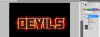
Dunno if the image helps, but this is the PSD file of the deviltext.
devilfirepic1.PNG
 
The screenshot does help. I can see what you did and how you did it. Ok Luzarin, when you want to apply effects to a text layer, it's best to NOT rasterize or merge layers. That's what I think you did here. Instead, create the text and duplicate the layer. Use one layer for layer styles and the other for other effects such as the wind effect you used.
 

Back
Top