What's new
Photoshop Gurus Forum

Welcome to Photoshop Gurus forum. Register a free account today to become a member! It's completely free. Once signed in, you'll enjoy an ad-free experience and be able to participate on this site by adding your own topics and posts, as well as connect with other members through your own private inbox!

How do I put a thin 1px rectangle around an image?


omar

Member
Messages
10
Likes
1
Can someone tell me how I put a thin 1px rectangle around an existing image

For example, imagine I have an image that 500px wide and 200 px high
I want a 10px gap all around and then I want the thin rectangle

What would the proper way of doing this?

Importantly, the image will be a PNG, so I want the gap around the image to be transparent

I'm planning to have on a black background, so want my rectangle to be a white line

Thanks in advance


OM
 
There are multiple ways to do this, but I think the easiest to explain is:

ctl/cmd click on the layer thumbnail of the rectangle
Go to Select>modify>expand
Put in the number of pixels you want -- 10 px -- and enter. Now you'll have a new selection.
Go to edit>stroke and add your 1 pixel line (your foreground color will be in the dialogue box, but you can change it there with the color picker, or change your FG color first)
 
There are multiple ways to do this, but I think the easiest to explain is:

ctl/cmd click on the layer thumbnail of the rectangle
Go to Select>modify>expand
Put in the number of pixels you want -- 10 px -- and enter. Now you'll have a new selection.
Go to edit>stroke and add your 1 pixel line (your foreground color will be in the dialogue box, but you can change it there with the color picker, or change your FG color first)
thanks for the amazingly quick reply!

i'm using windows
ctl/cmd click? not sure what to do here
i've tried different things - including ctrl left click and ctrl right click - nothing

i can see 'select' in the menu - but the modify option is always greyed out regardless of what i do!
what am i doing wrong?

ALSO: remember that the space between the pic and rectangle needs to be transparent - from ur description, i wasnt sure if this was the case

the stroke - i know how to do this

let me know what u think
thanks
 
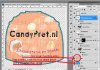
I don't know if this picture will help you, but unless there is something wrong with the program, then you are just making some small error.

And yes, you will have a transparent space, though I used an existing img which doesn't have that. If you need I will go back and make you an exact example of what you want. Let me know.

Your modify option will not be greyed out if you have a selection; if you see the marching ants.

When you Control click it will be the usual left click.

stroke.jpg

So, in this image I wanted another shape below the peach shape. I could have used a stroke but I wanted a 3rd line and so on. So I did ctl click on the peach icon, expanded as needed, got my marching ant border, and filled it. Now in your case, you will see the selection, the marching ants, and you'll go to edit and choose stroke.
 
thanks a million :)
i've done it - well almost

see below for what i was able to make:

myoutline.png
the only thing is - why have i got rounded corners?
let me know

thanks!
 
also... only just noticed now... why is there a bit sticking out on the left hand side??
thanks
 
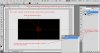
Photoshop. I don't know the technical reasons for some of its stupid jerk issues. Let's see. I would try the following:Use the shape tool. I should have steered you this way to begin with:To the left of the shape tool drop down on the top you will see another dropdown called geometry options and one of those is a fixed size. To the left of that secton you will find another section of 3 choices, one will be chosen. Click the middle one which is paths. Find you square box and draw out your shape. Go to the paths palette, ctl click the path and you'll have a selection to stroke. It will have nice clean lines.

Here's a guide
 

Attachments

  • shape_tool.jpg
    shape_tool.jpg
    277.9 KB · Views: 11
Last edited:
Photoshop. I don't know the technical reasons for some of its stupid jerk issues. Let's see. I would try the following:

Use the shape tool. I should have steered you this way to begin with:

To the left of the shape tool drop down on the top you will see another dropdown called geometry options and one of those is a fixed size. To the left of that secton you will find another section of 3 choices, one will be chosen. Click the middle one which is paths. Find you square box and draw out your shape. Go to the paths palette, ctl click the path and you'll have a selection to stroke. It will have nice clean lines.
ok... i'm nearly there - not quite though

>> Find you square box and draw out your shape.
how do i draw a box with no filling?
there is an option - but this just draws something with a 1px black line
i've spent 5 min trying, but i can't change the line colour
(i didn't try changing the colour after - i was trying to make sure it was the right colour before drawing)

>> Go to the paths palette, ctl click the path
ok.
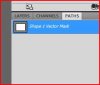
just to make sure i'm doing what u mean, i assume u refer to this:

Capture.JPG

??

>> and you'll have a selection to stroke. It will have nice clean lines.
i don't quite see how i get the stroke?

let me know where i'm going wrong
ALL your replies so far have been great
thanks

EDIT: no idea why the attached image got attached - i originally added because i could find geometry options... but then i found - can't remove by editing post!
 

Attachments

  • Capture.JPG
    Capture.JPG
    17.9 KB · Views: 6

ok... this is what i was thinking of doing but couldn't get my head round how to do
yes: it's a great answer :)
but... i think it's a bit of a hack. lol
i've been doing that type of thing for different things for ages
the problem with that is, it's harder to automate when u want to apply on mass to a load of images
thanks - it's really helpful all the same

the other solution by ibclare - i'd still like to get my head round - never done that way before
 
the line color you are looking at is not really there. It is a path. and if you open the paths palette you will see it highlighted in blue. If you click off of that, the line will disappear.
 
sorry about that paragraph where everything is together. I had it separated out into paragraphs to make it easier to understand then when I edited it to add the image, it got all stuck together. PSG site just changed some software and working out the bugs.
 
You need to double click on my picture if you haven't already.

You have the wrong outline selected. You don't want shape layers, that will fill with foreground color. You want the one in the middle with the pen and the path.

When you draw out the rectangular shape you will get that thin grey / black line. It is an indicator of the path. Go to that path palette.

Where you see the path highlighted in blue, control click and you WILL (I promise) get a selection that you can stroke :mrgreen:
 
It isn't a hack, it's just easy and quick. Maybe you should be a bit more specific in explaining what you want, as we aren't able to guess the level at which you are at with photoshop skills, or that you wanted to automate the process.
View attachment 12495
 

Back
Top