
What's new
Photoshop Gurus Forum

Welcome to Photoshop Gurus forum. Register a free account today to become a member! It's completely free. Once signed in, you'll enjoy an ad-free experience and be able to participate on this site by adding your own topics and posts, as well as connect with other members through your own private inbox!

How to convert this image into a Shape


hooked82

New Member
Messages
3
Likes
0
Hi All, newb here who finally registered rather than just cruising the forums.First off, I want to say that I'm decent at Photoshop, but I'm by no means a professional.What I'm looking to get some guidance on is how to take an image, in my case a topographical/lake contour map, and convert the contour lines into a Photoshop shape so that I can scale the image as large as I'll need it to be and still have the lines be clean rather than blurred. I'll need the background to be transparent, and I won't need worry about the numbers.Here's an example of what I'm looking to convert:contour_map.jpgAny thoughts/suggestions on how I should go about accomplishing this? Many thanks in advance!
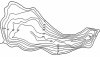
 
Well simple solution would be to select all the black add a pixel or so to it right click and create work path go into paths section select your work path then go to Edit> define custom shape..

Or you can have it already done for you. However I honestly would reccomend importing it into illustrator and touching it up there I am not sure how accurate it needs to be though maybe this will do you. If not follow the above instructions but boost the levels and contrast a bit first before making the selection.

View attachment map.rar

Our site does not support custom shape files so included it in a rar \AKA zip file for you.
 
Thanks, Hoogle! I feel silly asking this, but what exactly do you mean by "select all the black"? Like use the magic want tool, or something else?
 
You will be there all day like that go to select > Colour Range hold down the shift key and click different areas of the black marks in the picture there will be slightly different shades. Adjust the fuzziness until you can clearly see a white copy of your picture in the preview box and press ok. Select any selection tool ie magic wand and then right click inside your selection and select create work path. and then it should be available in the Edit menu to create custom shape.
 

Back
Top