What's new
Photoshop Gurus Forum

Welcome to Photoshop Gurus forum. Register a free account today to become a member! It's completely free. Once signed in, you'll enjoy an ad-free experience and be able to participate on this site by adding your own topics and posts, as well as connect with other members through your own private inbox!

How to Create these iPhone Backgrounds ??


raymng

Member
Messages
17
Likes
-1
I am a beginner of PS, I want to create the background similar to the following backgrounds for iPhone. I don't mean the logo, just the background, I tried the gradient tool, but the result doesn't look as "smooth" as those samples, any other tools I can try?

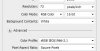
Also, when I create a new document, what "Resolution", "Color Mode", and "Color Profile" should I choose for iPhone's graphics??
Screenshot_68.jpg


Thanks!! :rolleyes:


Photo Apr 20, 5 29 52 PM.pngPhoto Apr 20, 5 33 12 PM.png
 
What colors are you trying to gradate? Some colors create slight stair-stepping and may require some smoothing techniques. I typically work on images for web and mobile at twice the resolution then resample down when done. I find it helps clean things up a bit. Just a personal preference. If you were to try this, create your image at 144ppi (72ppi x 2). Stick with 8-bit for web graphics. And sRGB is perfect (be sure to select VIEW>Proof Setup>Internet Standard sRGB to ensure that you're viewing the colors the way they will be seen online. Photoshop has a tendency to desaturate colors when saving for web and this step helps insure you're viewing the final results correctly).
 
These gradients look pretty good to me, but maybe I'm not seeing them well enough. The lower right is a radial gradient the other a linear gradient.

If you're having problems, maybe try adding some stops? Are you using a high resolution?

blue.jpg
 
I am a beginner of PS, I want to create the background similar to the following backgrounds for iPhone. I don't mean the logo, just the background, I tried the gradient tool, but the result doesn't look as "smooth" as those samples, any other tools I can try?

Also, when I create a new document, what "Resolution", "Color Mode", and "Color Profile" should I choose for iPhone's graphics??

View attachment 16699


Thanks!! :rolleyes:


View attachment 16697View attachment 16698

I'm unsure what the document size is for an ipod screen but the settings in your grab are fine except set the bit depthat 24.

The FB image looks more like a glow rather than a gradient.
 
I'm unsure what the document size is for an ipod screen but the settings in your grab are fine except set the bit depthat 24.

The FB image looks more like a glow rather than a gradient.

If I set to bit to 24, the "Save for Web" option would be disabled.

Just "glow"? Anything else?

Thanks!!
 
What colors are you trying to gradate? Some colors create slight stair-stepping and may require some smoothing techniques. I typically work on images for web and mobile at twice the resolution then resample down when done. I find it helps clean things up a bit. Just a personal preference. If you were to try this, create your image at 144ppi (72ppi x 2). Stick with 8-bit for web graphics. And sRGB is perfect (be sure to select VIEW>Proof Setup>Internet Standard sRGB to ensure that you're viewing the colors the way they will be seen online. Photoshop has a tendency to desaturate colors when saving for web and this step helps insure you're viewing the final results correctly).

But I am producing the graphics for iPhone, not for web. Do you know the parameters for iPhone?

How to "smooth" the gradient colors?

Thanks!!
 
Had to experiment on this.

View attachment 16732

Sampled darkest blue and filled background layer.

Sampled the lightest blue in the image and filled on a new layer. Apply a layer mask and apply a radial gradient on the mask . play with opacity to get the look you want.

Remember - black subtracts, white retains....

Setting at 24 will disable Save For Web. Save normally. But if you prefer Save for Web, set to 8 bits.
 
Had to experiment on this.

View attachment 16732

Sampled darkest blue and filled background layer.

Sampled the lightest blue in the image and filled on a new layer. Apply a layer mask and apply a radial gradient on the mask . play with opacity to get the look you want.

Remember - black subtracts, white retains....

Setting at 24 will disable Save For Web. Save normally. But if you prefer Save for Web, set to 8 bits.


Hi, I tired, the result really look "smoother" than directly applying the gradient, thanks!!

When I create new file, the "Color Mode - RGB Color" only provide 1, 8, 16, 32 bit. But no 24 bit provided...??

>> Remember - black subtracts, white retains....
What does this mean??

Thanks for your help!
 
Sorry my bad.... I meant 32-bit.... what was I thinking?,,, lol...

In layer mask mode or when painting on a layer mask , black will "delete" parts of the image under the mask. white will restore or retain what's under the mask.
 
Incidentally, you can use the same procedure to re-create your first image using the linear gradient. Takes a bit of trial and error to get the gradient right.

You could also transform the gradient mask - stretch it to the position you want it. Click the mask icon to make it active.
 
What colors are you trying to gradate? Some colors create slight stair-stepping and may require some smoothing techniques. I typically work on images for web and mobile at twice the resolution then resample down when done. I find it helps clean things up a bit. Just a personal preference. If you were to try this, create your image at 144ppi (72ppi x 2). Stick with 8-bit for web graphics. And sRGB is perfect (be sure to select VIEW>Proof Setup>Internet Standard sRGB to ensure that you're viewing the colors the way they will be seen online. Photoshop has a tendency to desaturate colors when saving for web and this step helps insure you're viewing the final results correctly).

>>I typically work on images for web and mobile at twice the resolution then resample down when done.

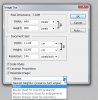
After I created the PSD, if I want to resample down it, should I just enter 72 in the box below?
But the "Bicubic (Best for smooth gradients)" option is disabled...

4-22-2012 1-36-58 AM.jpg
 
I think coz you're on 32-bit. Didn't expect you'ld be downsizing it.

Use 16 or 8-bit.

Create in it's normal size. Downsizing will affect the image quality. you might get banding in the gradient.

You can work on the original psd at 150dpi. and save the final file at that resolution or at 72.
 
I think coz you're on 32-bit. Didn't expect you'ld be downsizing it.

Use 16 or 8-bit.

Create in it's normal size. Downsizing will affect the image quality. you might get banding in the gradient.

You can work on the original psd at 150dpi. and save the final file at that resolution or at 72.


jaysuess suggested me to use 144 ppi, then down resample to 72 ppi, that can help to smooth it, so I just tried to do this.
But when I Save it as PNG, I can't choose the resolution...

Thanks!
 
Can't seem to reproduce your problem at my end.....

Have you converted it to 72 or is it still at 144 when you tried to save? You have to size it down first before saving. You can't select resolution when saving.
 
Can't seem to reproduce your problem at my end.....

Have you converted it to 72 or is it still at 144 when you tried to save? You have to size it down first before saving. You can't select resolution when saving.

So I should create a 144 ppi file first, do the gradient, then change to 72 ppi in Image Size box, then save it to PNG as usual, correct??

Thanks!
 

Back
Top