What's new
Photoshop Gurus Forum

Welcome to Photoshop Gurus forum. Register a free account today to become a member! It's completely free. Once signed in, you'll enjoy an ad-free experience and be able to participate on this site by adding your own topics and posts, as well as connect with other members through your own private inbox!

How to create this border


avz10

Active Member
Messages
26
Likes
0
I hope someone can give me advice.

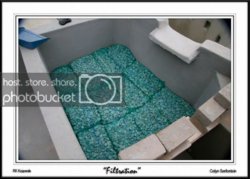
I saw this border in a forum, and like it. Is there anyone that can give me an idea how to add something similar to my photos? (or is this a specific programme/ add-on that was used)

K20080726_MG_4525.jpg
 
Here is the tip to create any such border.

Add stroke style to your layer, Position - Inside, choose the stroke size that suits you. Set Fill type to Color or Pattern.

Add Bevel style with Style - Stroke Emboss, Tecnique - Chisel Soft, size - the same one you've chosen for Stroke style earlier.

Now add a Contour style of your Bevel style. Set Range - 50%. Go to Contour curve dialog. Draw horisontal curve in the middle and carefully draw the profile of your border from left to right. Just like that - the cross section of your frame. Check the look of your border while in process.

Finnaly you can play around with different settings: Depth, softeness, etc, add other styles, Inner Shadow for examlpe.
 
Thanks for that.

I am making a little progress, but am now stuck. I use PS 7

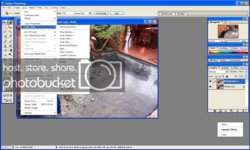
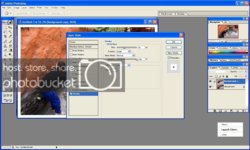
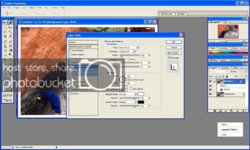
Here are some screenshots:

1-2.jpg

screen.jpg

screen2.jpg

Please look at my steps and at the last screenshot I get stuck!

Thanks- very new to photoshop
 
Last edited:
In the second step the Style for Bevel should be Stroke Emboss and the size of it should be the same you've shosen for Stroke Style in the first step.

Also you may try to choose a Fill Type for Stroke Style something like wood or other. Just try - it's fun:)
 

Back
Top