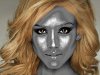
Almost every adjustment the author makes is in Camera Raw. The video moves too fast, doesn't really show the panels on the right, and has neither voice nor text instructions to follow. He uses virtually every slider option in CR which is really quite fun to play with. Once he is satisfied with those adjustments, he opens it in Photoshop, uses a curves adjustment to get the lighting perfected to his desire, adds a gradient overlay, and spends the majority of the video uses the healing brush to smooth out all the blemishes and make her skin so smooth it is shiny.
The most important thing, IMO, is to find a high resolution image which is very sharp to begin with and has lighting effects that accentuate the highlights and shadows. These can be increased by the adjustments in CR and the curves in PS. Having the right picture will make it much easier to achieve a metallic effect.
I would advise you to learn how to use Camera Raw. He assumes a lot of experience for following this video properly. I don't know of a direct tutorial to reproduce this, but as I said, if you learn how to use the various tabs in Camera Raw, you will understand the steps much better. I think you will be able to make a reasonable facsimile, even if you don't understand curves adjustments. You can use levels a bit easier to correct the photo. Then learn the healing brush. You can achieve good results with the clone tool (I often use them interchangeably), but if you set the healing brush properly, it works quite well. This is a simple and often used tool in photo retouching, so I'd advise you find tutorials on that.
You really need to know not only the basics of PS first for following this effect, but these things are more on the intermediate to advance knowledge and skill level.
Alternatively, there are ways to achieve this effect using levels or curves, sharpening, the chrome filter, the healing brush or clone tool, and hue/sat adjustments or gradient overlays. One thing you can experiment with is duplicating the layer after you make your initial changes to it, then adding the chrome and putting it on overlay or screen blend mode to soften the sharpness of the chrome. Be sure to use the sliders in the filter so you don't have so much of the highlight/shadow which makes weird bumpiness. There are other things you can do but it's all a matter of experiment.
You might try googling for more metallic effect tuts. There probably are some which use only Photoshop and are better explained by the author. This one is interesting but difficult to follow if you don't already know what he's doing. Kind of contrary to the idea of tutoring, lol.
Hope this helps.