What's new
Photoshop Gurus Forum

Welcome to Photoshop Gurus forum. Register a free account today to become a member! It's completely free. Once signed in, you'll enjoy an ad-free experience and be able to participate on this site by adding your own topics and posts, as well as connect with other members through your own private inbox!

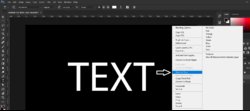
Specific How to type text and fill transparent


Hi

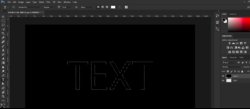
First create a background layer filled with black, double click the BG layer to unlock it, next add your text with the type tool and then right click on the type layer and select rasterize type

image1.jpg

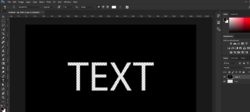
Then drag the type layer below the BG layer and CTRL click on the type layers thumbnail to make a selection

image2.jpg

Then select the BG layer and hit delete on the keyboard and you should have this, unless I misunderstood what your looking to do!

image3.jpg
 
Last edited:
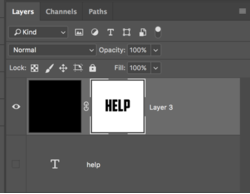
Another way would be to work non-destructively. Don't rasterize the text layer, preserve it in case you need to make changes, just turn it off. Command/Control + click the layers thumbnail to make the selection. And instead of deleting from the black layer, just use a layer mask. You can then unlink the layer mask and use the Move Tool to move the text around the layer mask. Much more editable.

Screen Shot 2017-10-25 at 10.19.13 PM.pngScreen Shot 2017-10-25 at 10.19.21 PM.png
 
Another way you can do it, while maintaining the ability to edit the text, is to double click the text layer to bring up Blending Options, set the Fill Opacity to 0%, and set Knockout to Shallow or Deep. Shallow will knockout the layer directly underneath your text, and Deep will knockout all the way through the background, or all layers.

This method preserves the ability to edit your text, change the font, etc.

text-transparency.png
 

Back
Top