What's new
Photoshop Gurus Forum

Welcome to Photoshop Gurus forum. Register a free account today to become a member! It's completely free. Once signed in, you'll enjoy an ad-free experience and be able to participate on this site by adding your own topics and posts, as well as connect with other members through your own private inbox!

Im having a hard time cropping


knuckles0488

New Member
Messages
1
Likes
0
Im trying to get the dragon seperate from the background and making the dragon rip though an earth for a tattoo. Can someone please help. Tried it but no luck at all.

Thanks
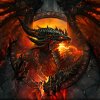
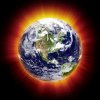
World-of-Warcraft-Cataclysm-iPad-Wallpaper-Picture-Gallery.jpg earth.jpg
 
It seems to me like you're going to be spending about two or three hours with the selection tool, hacking away at little bits and pieces of this guy's sharper edges and then another hour or so with a large 0 hardness brush on about 50% opacity on his softer edges. This will be a project, but it's doable. If' you're taking it to an artist, bring both images in color, and put the two images together the easy traditional way.

bring both images out separately, rub a graphite pencil on the back of each one. Put the pictures down on a sheet of paper and trace the lines of the dragon on the front of the picture you rubbed graphite on the back of. The lines will transfer wherever you go over them. Do the same with the earth picture on top of the same area, and then erase the parts you dont want. You can modify the sketch from there and have the lines for the actual tattoo, and then the two individual pictures as a color reference.
 
There are a couple of ways to do this..... actually more than a couple but I'll start out with just two.

First way: Get out your pen tool and carefully cut out around around the dragon. This will take some time, but the more time you spend up front the better your results. Once you have your dragon cut, convert that path to a selection, copy it and superimpose that copy onto the earth. Resize, blend, add effects and there you have it.

Second way: Copy the dragon picture on top of the earth picture, reduce the opacity enough so that you can resize it to the approximate size you'll need. Put a layer mask on the dragon and start painting out the bits you don't want. I like this method because you can always fix it - use black to mask the unwanted bits and white to put them back if you take too much - and because you see results immediately. Resize the dragon until you have him exactly the right size, blend, effects, etc. as before.

If you want an outline of the picture you can always make a jpg out of it the whole picture and apply the "poster edges" filter. That will give you big wide outlines for the artist to work from.
 

Back
Top