I don't see this in the postings you made. IDK exactly therefore what you mean. But you can create your own pattern. Make it the size you want. Design the lines in black or grey, make them close together, then after you have a series of lines, copy and paste to new layers and position the layers. The go to edit>crete pattern, name it, and it will be in your patterns catalog to use and reuse. Set the blend mode of the pattern to get the effect you want. I will try this myslef and see if I can come up with a rendition that could work for you.
It would help to know the size of the lines and the spacing.
There may be another effect such as filters you might like. Or other members will have ideas beyond my experience.
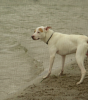
OK, I played with this. Here are 3 versions. One with a line pattern I made (very widely spaced, but I knocked it out fast), one with filter>sketch>halftone, one with filter>sketch>graphic pen. With the filters, I applied them to a duplicate of the original image, then adjusted the blend modes and opacities to work with the image below. You can do the opacity & blend changes right with the filter on the original, but I prefer to use a smart filter and have the ability to adjust these without having to redo the original or dupe over and over. Just sayin.
Here is with my created diagonal line pattern
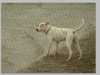
this is the pattern itself
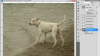
this is adjusted in the pattern dialog box for mode and opacity, used overlay, 10%
I have visuals for how to create the pattern if you would like to see those, assuming you want to try it.
Here is with filter halftone
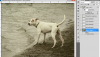
Here is with the graphic pen
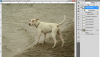
If this touches at all on what you want to know, and you have questions, let me know. I'll be out for a few hours, but should have some time then or tomorrow -- by which time you'll have gotten more responses anyway!