What's new
Photoshop Gurus Forum

Welcome to Photoshop Gurus forum. Register a free account today to become a member! It's completely free. Once signed in, you'll enjoy an ad-free experience and be able to participate on this site by adding your own topics and posts, as well as connect with other members through your own private inbox!

light saber needs more light


ibclare

Queen Bee
Messages
9,890
Likes
4,028
I tried lots of different things to make tis sucker glow, but I'm not satisfied. I did a lens flare inside and a motion blue and a layer mode change with a copy below. I have seen an effect getting a lens flare outside the object; in fact I watched a tutorial, fashion edits to make a sparkle coming from a diamond. I'll have to see if I can find that again. In the meantime, if you have some ideas . . . I'd appreciate it.

Also, honest critique. I tend to "gild the lily," so if you think this is too busy or have other constructive criticism, I'd love it (love? well, working on my ego anyway!)

Grassyis, IB
 

Attachments
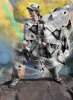
  • Clares_n_Alien.jpg
    Clares_n_Alien.jpg
    5.1 MB · Views: 2
Last edited:
View attachment 5036
obviously you will need to play with how you want it exact
for your image I created a new layer selected a white brush 2px diameter
pen tool created a line down middle of lightsabre
right clicked and selected stroke with brush so you should now get a 2 px white line play with blending modes until your happy
then duplicate the layer blending options again add outer glow to colour of your liking and adjust size / opacity
 
That's great. I only hope I can do that. I'll try it later. I added a layer onto rock with a neon glow to soften it. I'll show you later if it all comes together. Mwaaa
 
actually you would have been better of creating you light sabre using this method far more effective there is a big craze on youtube for Glow lines just search it and all though most of them are spirals around people etc the principal is the same
 
Hi ibclare

there you go

00Clares_n_Alien.jpg

- chose a soft circular brush and set your brush to small size let's say 9 px
- set brush color to white
-select pen tool
-draw your light saber form or any line
-once finished the drawing, right click on path select stroke path uncheck simulate presure.
- go to layer>layer style outer glow select color hit ok, DONE

* If you wanna go a lil further, layer style>inner glow, select same color, change blending mode to normal and low opacity

Hope this was helpful.

Good Luck
 
View attachment 5038
how i created these the simple method lol
google image light sabre handle
set your foreground colour to white and a brush of 5pixels (varies according to size of image )
select pen tool and make sure make path option is selected click at base of where you want the light beam to start from handle
hold down shift and click where you want the beam to end ( holding down shift keeps the path straight
go to your layers panel you should have 3 tabs layers > channels > paths
select paths you should see 1 path right click it and select stroke will come up with option simulate pen pressure and choose brush
you get a white 5 pixel width line then go to blending mode add outer glow choose the colour and adjust sliders of size (21 in examples) Spread (54)
delete path and there you have it a simple light sabre
 
"and there you have it"

uh huh. Well, I'm still working on the first method. Something funky is going on. I can't get the color into my outer glow, it's almost white. Never had that happen before. Looking around and don't see anything amiss. This is the topmost layer.

I think it's the blending mode on the outer glow. It was set to screen.

IDK. I'm frustrated. You have excellent skills and I appreciate your help. Can't always follow what you'e saying but I try to understand.
 
Last edited:
Final attempt for the night. The issue at this point is, how do you get the glow to spread out, decreasing opacity to the edges? Or is that an illusion? Mine is shaped like a tube.
 

Attachments

  • Clares_n_Alien_2.jpg
    Clares_n_Alien_2.jpg
    5.2 MB · Views: 0
OK try this
Step 1 create a new layer (make sure it is the top layer
step 2 select a hard brush between 5 and 10 pixels wide to suit your sabre
Step 3 using white hold down shift and paint roughly the length of your sabre anywhere on the layer
step 4 press control and T to transform the layer and move white line over your sabre
Step 5 right click the layer and go to blending options> outer glow select the colour to blue set the size to 21 and the spread to 54
step 6 tweak it to your liking
 
the spread should be at least double the size in outer glow settings see your getting there nicely
 
H is correct but i done it this way.
 

Attachments

  • Clares_n_Alien.jpg
    Clares_n_Alien.jpg
    557.3 KB · Views: 21
and how did you achieve that. by the way having a yellow background really does not help with a glowing effect
 
Yellow is what in original, didn't want to change that much only the texture and the saber.
I used brush set to pale blue colour couple of over lays and blurs, played with the light settings and did a couple of layer overlays with more textures.
 
Sorry would have done this a lot sooner but I have been really sick all day and all night so excuse the spoken part trying to sound normal lol new intro what do you think a bit much lol a bit vain maybe
 
there is actually a program made for lightsaber making, LSmaker i thought, it is created for movies but I think you can make your lightsaber in a photo in it...
 
Thanks guys. Love all the light and texture changes Belial; very cool. I'll play around with the idea later. This may be the one and only light saber I'll ever create so I just want the simple PS method. Gosh Mr. Hoogleman! I certainly didn't expect a tutorial, but I'll enjoy watching it. Thank you verrrry much. No time to do anything now; I neglected all my errands and jobs yesterday, so I'm gonna have to be at least a little responsible today. I do hope you're feeling better now.
 
Hmmm, I'm watching ur tut (even tho I should b doing elsewise). I did use the glow this way, but I didn't make the saber from just white pixels. I'll try it again. Once more, I really do appreciate all your input. I love this forum & you all too (of course).

:eek: <<<--- me watching tutorial
 

Back
Top