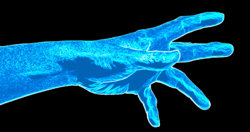
This is the closest I could get. It's not the same as the example you provided, but maybe it still qualifies as ghostly.
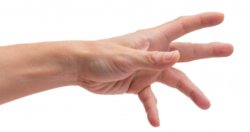
1. Make a selection of the hand (or whatever) and extract it onto a new layer.
2. Convert the hand to B&W and use Levels to greatly increase the contrast. Copy all of this to its own new layer and de-activate all other layers.
3. On a new layer
below the hand, add a solid black layer.
4. On a new layer
between the black layer and the hand layer, add a solid-color adjustment layer and set it to any color you want (I used blue).
5. Add a layer mask to the solid-color adjustment layer so that only the hand is affected by its color. (You can go back later and keep changing the colors.)
6. Go back to the hand layer (which should be the top layer) and use Filter>Stylize>Find Edges.
7. Change the layer blend mode to Divide.
8. As an optional step, copy the hand layer again, so that you now have two hand layers, both set to Divide blend mode. It enhances the effect.
Here's what all of that gives you.