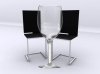
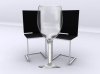
chitkaran, you flattened some layers in your psd file so it's hard to follow what you've done.
Here is another way to do this. It involves of course making the glass into a selection. I've used the pen tool and created a layer mask. Then use the pen tool to make a tracing of the inside of the glass.
Make a selection of the inside of the glass and turn off the eye. You'll use this layer later. Duplicate the original glass -- you might need it later (though if you use masking, you still have it intact).
Now use the select>color range. Set the fuzziness and the range pretty low and select the white mainly from the background; you are using the low settings so that not all the white is gone from the glass. Some people will use blend if options for this, or even layers. PS; lots of options. Click OK on the color range and use the selection to create a mask, or if you're confident, use erase (you can alos undo). If necessary do the color select on another copy of the glass. It might help to combine both layers, maybe set one to soft light over the other.
Now ctl/cmd click on the inside glass path or on the thumbnail of that layer and remove or mask out the inside of the glass. Turn on the inside glass layer and set it to overlay mode, then lower the opacity till you get a brightness and a bit of roundness to the glass. I set it to 35%. Like I said before, this being Photoshop, there are always plenty of ways to do the same thing. You just need to pick one that you are comfortable with doing.
View attachment 24178
In this instance, the perspective of the glass is off. So is the color balance. You'll need to adjust that. Add a photo filter (maybe lower opacity of filter) or do a color balance, hue, or channel mix adjustment.