What's new
Photoshop Gurus Forum

Welcome to Photoshop Gurus forum. Register a free account today to become a member! It's completely free. Once signed in, you'll enjoy an ad-free experience and be able to participate on this site by adding your own topics and posts, as well as connect with other members through your own private inbox!

Illustrator Making lines TIGHT


Craigs

Member
Messages
9
Likes
0
I really need to have some lines be very very tight to each other in illustrator.
One way I can figure out to do this is to set the grid to a easy to work with size and simply have each line exactly fit into a certan number of grid boxes. This however makes everything all about these lines which with my current project isn't ideal, I need the grid for other things too and would rather use something more workable for me.
Another way I tried is using maths. I got the size of an illustrator point online (can't post the link).
But even multiplying that by two (my lines are 2pt) and adding it to the x or y value of the prior line I still always get little gaps between my lines. I'm giving myself a headache squinting at the screen and using fiddly little numbers but it just never comes out right, there's always a gap.
Does anyone know a good way to make padded lines tight to each other?
 
Can't you just sect them and nudge them over until one touches the other or put another layer of the same color underneath to hide space you're seeing? Something's sounds odd about this.
 
Can't you just sect them and nudge them over until one touches the other or put another layer of the same color underneath to hide space you're seeing? Something's sounds odd about this.

Manually moving them is very inprecise. Even doing it with numbers and smallest points of decimals doesn't quite make them fit.
I could always fill in a copy of the colour underneath to mask white parts, we are talking smallest fractions of a millimietre that nobody would care. But still, it feels like a cheat to me, surely there's a way to get it actually work preceisely?
 
Can you show a sample of this?(screenshot maybe)
 
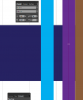
Here, though not much to see, just some lines really!
That's the closest I can get without overlapping, the next 0.01mm makes it overlap slightly
 
Are you using pixel based images opened in ai, cuz I see solid contact in some but others I see a feathering transparent effect.
 
Sorry, should have said. The purple and brown ones are the only important ones here, the blue line is a thick horizontal one they're all overlapping.
 
Not that good with ai to figure this one out other than feathering or brushed used was not 100%flow sorry maybe some will step it here with idea good luck
 
No idea why this just came to me but try stoking those items not connecting with a solid 2/3 point stroke. using colors matching the same solid colors:idea:
 
Would work but would be a little bit of a cheat too...but I'm increasingly settling on a cheat.

Any idea about adding strokes to a single path? Is there anyway to do this in such a way that you can have a pile of strokes of differnet colours with none repeated?
 
I've been trying to figure out your question.

I don't have Illustrator loaded in my CPU at the moment. Tho I'd usually do vector graphics in Corel Draw.

One trick I'd use to get lines (say 2 points) tight to each other is by first setting the ruler scale view to points. Create one line at 2 points and position the X axis in the canvas at say the 50 mark. you then create a second line and position that at the 52 mark.... and so on so forth....

Here's a zoomed in screenshot in Corel. Red at 50 and the other at 52.

thightline.jpg

Now, there's no way for me to check in illustrator if theres an absolute position control where you can just key in the X or Y axis to get the lines at the desired location.

Hope this helps.... I hope... lol
 
One method is to use the distribute function on a key object and you can set the distance to whatever you need. Pixels, inches, etc.
 

Attachments

  • ScreenShot001.jpg
    ScreenShot001.jpg
    73.2 KB · Views: 9
Back from my holidays!
Will have another go when I'm recovered

One method is to use the distribute function on a key object and you can set the distance to whatever you need. Pixels, inches, etc.
IIRC doesn't this make corners not mesh?


I've been trying to figure out your question.

I don't have Illustrator loaded in my CPU at the moment. Tho I'd usually do vector graphics in Corel Draw.

One trick I'd use to get lines (say 2 points) tight to each other is by first setting the ruler scale view to points. Create one line at 2 points and position the X axis in the canvas at say the 50 mark. you then create a second line and position that at the 52 mark.... and so on so forth....

Here's a zoomed in screenshot in Corel. Red at 50 and the other at 52.

Now, there's no way for me to check in illustrator if theres an absolute position control where you can just key in the X or Y axis to get the lines at the desired location.

Hope this helps.... I hope... lol

That works for simply drawing straight lines anywhere but I'm wanting to make more complicated lines and I'm not always able to do it exactly on the grid lines.
 
Last edited:

Back
Top