What's new
Photoshop Gurus Forum

Welcome to Photoshop Gurus forum. Register a free account today to become a member! It's completely free. Once signed in, you'll enjoy an ad-free experience and be able to participate on this site by adding your own topics and posts, as well as connect with other members through your own private inbox!

Need advice on how to replicate this cutting technique


FlipFl0p

New Member
Messages
4
Likes
0
Hi guys! This is the first time I've had to post as I cannot seem to find information on doing this technique anywhere online. Any advice is much appreciated.

92p1.png
I'm trying take an object and cut a letter out as in the example above. Now I have no problem with this in Flash using vectors but I'm fairly new to photoshop and having played around with layer masking etc. I cannot get this to work.

Can anyone please advise on how I should go about cutting a letter out so the background becomes visible? I would also like to have an inner shadow or whatever is seen in the above image.

All advice is very much appreciated , thank you.
 
Pretty easy one here, make a pattern, make a new layer, type out your number and place them where you want them on your shape, then goto the Magic Wand tool and select your numbers, hide the numbers layer and goto Edit>Cut and wala...

You may want to Rasterize your shape and numbers..
 
When you say make a pattern are you simply referring to the shape I want i.e. the rounded square in the example? Or is this a specific Photoshop feature? I've never used Patterns.

Did everything else and getting this error:

Could not complete the Cut command because of a program error.
 
example.pngI've gotten this far by adding the text on a layer above my shape and then merging the layers, selecting the C with the magic wand and deleting but this method causes me to lose the inner shadow effect I had added to the letter. Any suggestions on how I can maintain this? Thank you.
 
Ok, try this....

Step#1 Make a new layer..

Step#2 Make your shape...

Step#3 Make a new layer and add your text and place it were you want.

Step#4 Rasterize your shape and Text...

Step#5 Pick your Magic Wand tool and select your text or simply hold down Ctrl and click on the text layer that you rasterized it will make a selection for you..

Step#6 Once your letters are selected hide the text layer and go to your Layers pallet and select the shape layer.

Step#7 Goto Edit> and select Cut and that should do it...

Make sure you have the Shape layer selected before you do the Cut....
 
If you want to use vectors to achieve this effect, you could also go that route. (That's the nice thing about PS, there are several ways of doing the same thing!)

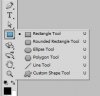
1 - select the Rounded Rectangle Tool (9 times out of 10 this is hidden under the Rectangle tool | either click & hold on it, or SHIFT+U to cycle through them)

tool.jpg

2 - create your shape
3 - create your text

OK, you can now modify the vector mask of the shape layer you made with the pen tool, but if you're doing this, rather just do it in illustrator and import the finished shape into PS as a smart object to apply your layer styles.

If however, you want do it all in PS...

4 - make sure your shape layer is selected (the one you made in step one.)
5 - CTRL+CLICK on the THUMBNAIL of the text layer you created. This will load a selection based on your text.
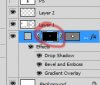
6 -at the bottom of your layers panel, click on the 'add layer mask' button.

layermask.jpg
This creates another layer mask over your shape layer (which is already defined with a vector mask) The problem is that the raster mask you just made is inverted.
7 - to re-invert this mask, make sure that the thumbnail of the actual layer mask is selected (it will have a reticle around it)

layer-Mask.jpg

8 - press CTRL+I

You should now have the required cut-out effect.

Here's mine (with the obligatory drop shadow, bevel and gradient overlay layer styles applied:
finished.png
 
Last edited:

Back
Top