What's new
Photoshop Gurus Forum

Welcome to Photoshop Gurus forum. Register a free account today to become a member! It's completely free. Once signed in, you'll enjoy an ad-free experience and be able to participate on this site by adding your own topics and posts, as well as connect with other members through your own private inbox!

need help with quick vector/stencil


knasa2

New Member
Messages
4
Likes
0
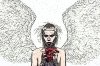
hey guys im not that new at photoshop but this one im really struggling with. i want to turn this album cover into a vector/ stencil so i can then put it onto a t shirt im struggling to get it to work because of the lack of contrasts

if anyone could have a go at it for me would be amazing thankyou in advance
 

Attachments

  • Die-Antwoord-TENION-Album-cover.jpg
    Die-Antwoord-TENION-Album-cover.jpg
    61.5 KB · Views: 6
[h=2]Instructions[/h]
    • 1Open the image that you would like to convert and draw a path around each object. Try the "Magic Wand" tool first. It can be selected from the main toolbar. If the image you want to convert is basic, like the image of a car, it is possible that the "Magic Wand" tool will correctly identify the edges of the object and draw an accurate path around it. If the "Magic Wand" tool doesn't work, you will need to turn to the "Magnetic Lasso Tool". Select this tool from the toolbar and trace the edges of the object until it is fully enclosed in lines. The "Magnetic Lasso Tool" will snap to the edges of the object, giving you a precise tracing.


    • 2Click on "Make Work Path from Selection." This option is available on the "Paths" work palette and appears as a circle with lines emerging from each side. When you click this button, the tracing that you have done around each object will be turned into a path.


    • 3Export the paths that you have created. Click on the "File" menu then click on "Export" and choose the "Paths" option when it pops up. This will bring up a window for exporting.


    • 4Save the file with a new name to prevent confusion. You can type the name for your vector file next to "File Name" in the export window. Click "Save." The file will save as an Adobe Illustrator (.ai) vector file.


    • 5Correct the image. There will likely be a few places along the path created that look ragged in comparison with the original image. You can correct these spots by opening the .ai file in Photoshop and using Photoshop tools to smooth out the edges. Selecting each path is done using the "Path Selection Tool". Once a path is selected, the edges of the path can be moved. Other Photoshop tools, like the "Eraser," will also be effective in altering and smoothing path lines.

 
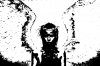
vectored.jpgthis is the knd of thing i am trying to do but with better detail. can anyone do it or teach me?

thank you
 
I think you should try sierra's suggestion first and if you can't make it B&W enough try this:
I duplicated the layer twice,
did poster edges on one as sierra suggests. On the posterize layer, since I made different edge thickness and intensities, I had more grey. I used color range and masked that out.
then added a threshold layer such as you did, and changed the blend mode to divide. On the threshold layer, I did the select>color range for the white (should have done black)
On the third layer I made a drastic levels adjustment to bring the wings up as dark as possible.
I then did filter>poster edges with edge thickness and intensity at half and posterization at full.
I did color range and selected for black and masked the selection.
Finally, I masked out everything on that level except the wings.
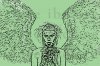
AngryAngel.jpg

Then I made a png and did color range one more time for the white. I put a color layer below so you can see. There is some white residual. If that's a concern, you can be more thorough with the color range selection. I had fuzziness set kind of low and I didn't just select black that second layer (which I did on the 3rd). You'll probably have to go in by hand and erase or mask some things anyway. The poster edges filter finds edges where you probably don't want them so just go ahead and delete or mask those.

Here's a simple channels solution (I've used it) to the "get the white out" from this kind of image -- once you get it to lines that is: http://krysjez.wordpress.com/2009/02/22/extract-lineart-in-8-simple-steps/

Anywho, that's how I would do this. It isn't that much different from sierra's, just has the color and white taken out. Guess it depends on what you're looking to use it for. :mrgreen:

 
Last edited:
wow they are looking really good guys cheers ill see how they go for stenciling might just have to free hand the heart and wings maybe.
 

Back
Top