Hey guys (and girls),
I'm new to the forums and PCS5 although I've used Photoshop Elements and GIMP for years. There are a couple very easy things I haven't been able to figure out in CS5 yet, so I keep going back to GIMP at times. I know there has to be a way to do this in Photoshop, but I haven't figured it out yet =). Anyway, here are the two things:
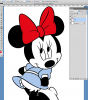
1) When I want to quickly color something to get an idea of what it will look like, I want to just use the paint bucket tool and fill the inked areas without having to select anything beforehand. I can do this easily in GIMP, but in Photoshop it fills the entire layer with color. Is there any way to fix that?
2) When painting, sometimes I want to work at a specific opacity level and I don't want my brush strokes to continue to build up the color as I go over it. In GIMP, using the airbrush tool I can do this, but in Photoshop, even if I have the opacity turned down, it will continue to build up the color with each stroke of the brush. Can I fix that?
Sorry for the easy questions, but hopefully someone has run into the same problems =P Thanks in advance!
I'm new to the forums and PCS5 although I've used Photoshop Elements and GIMP for years. There are a couple very easy things I haven't been able to figure out in CS5 yet, so I keep going back to GIMP at times. I know there has to be a way to do this in Photoshop, but I haven't figured it out yet =). Anyway, here are the two things:
1) When I want to quickly color something to get an idea of what it will look like, I want to just use the paint bucket tool and fill the inked areas without having to select anything beforehand. I can do this easily in GIMP, but in Photoshop it fills the entire layer with color. Is there any way to fix that?
2) When painting, sometimes I want to work at a specific opacity level and I don't want my brush strokes to continue to build up the color as I go over it. In GIMP, using the airbrush tool I can do this, but in Photoshop, even if I have the opacity turned down, it will continue to build up the color with each stroke of the brush. Can I fix that?
Sorry for the easy questions, but hopefully someone has run into the same problems =P Thanks in advance!