What's new
Photoshop Gurus Forum

Welcome to Photoshop Gurus forum. Register a free account today to become a member! It's completely free. Once signed in, you'll enjoy an ad-free experience and be able to participate on this site by adding your own topics and posts, as well as connect with other members through your own private inbox!

Not really sure How to get There from where I am...


Chas Barber

New Member
Messages
4
Likes
0
I posted awhile ago about identifying an effect used in a certain photo...I tried playing around with the suggestion from that post, but haven't had much luck. :confused:

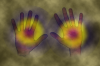
I need to reproduce the effects of this pic christopher's healing hands n q - Copy.jpg
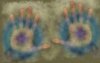
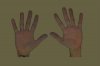
onto this picture Plain-Hands1.jpg

I cropped out the hands that I need to use and put them on the solid color background. Perfect world, I will have the background/edges so that it 'blends' into the background color.

Right now if I try and use the original graphic, it looks really bad with the edges of the effects being chopped off and a solid color behind.

So...any suggestions or advice someone?? :)
 
This is a quick version and the psd so you can see what I have done
Plain-Hands1.png
Select the background colour and have white as you background colour create a new layer and fill it with that brown beige colour.
go to filter render clouds
set that layer to either overlay, soft light or whatever you like the look of best
duplicate that layer and set it to multiply
create a new layer
select eliptical marquee tool and draw out a circle
using the radial gradient tool select the colours you want the gradient to be
in the circle (center) draw out the gradient to the edge
apply a layer mask and feather the edges or add a 4th colour to your gradient of transparant.
set that blending mode to how you like it and duplicate it for other hand and move into position.
I also softened the edges of the hand by selecting your background colour and used a soft edge brush to paint aways some of the hard edge lines.
Then tweak layer opacities and blending modes until your happy.
View attachment Plain-Hands1.psd
 
Wow...that is awesome help! I am trying these steps now. Question though...how can I create, what I think is called a mask?, so that I can easily put this onto a solid color background so that it blends into that solid greeny brownish color?
 
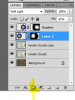
either press q on your keyboard and paint in a quick mask and then press q to complete the selection or best way is to select the layer mask icon
and then click on the mask thumbnail to paint in black in paint brush mode to hide parts of that layer or white to show parrts of that layer
 

Attachments

  • Capture.PNG
    Capture.PNG
    20.6 KB · Views: 7

Back
Top