What's new
Photoshop Gurus Forum

Welcome to Photoshop Gurus forum. Register a free account today to become a member! It's completely free. Once signed in, you'll enjoy an ad-free experience and be able to participate on this site by adding your own topics and posts, as well as connect with other members through your own private inbox!

Optical illisuion etc. help


losman

Member
Messages
8
Likes
1
Hi guys just wondering if anyone fancied giving me some tips on my images and how I could make them look more realistic.

anyway my objective is to create 2 images, one will be of an optical illisuion demonstrating I can use the techniques that have been taught (yeah right). the second image will be of a similar theme but will be sort of like an anotated version explaining your inspiration, artistic decisions and detailing the techniques used.

the moment you've all been waiting for, My images!
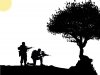
submissionC3246000.jpg

heres my first submission which although quite good lacks a background ect.
I then played with it untill it looked like this.

1stImage2ndSubmissionC3246000.jpg

I quite like it but thats supposed to be a moon in the top left, and I need to work some more illisuions in there if I can.
We then move on to my 2nd image:

2ndimage.jpg

as you can tell this is a real mess! i really want the image/frame to look more real and inline with the wreath.

The bottom line is can people please give me some feedback on improvements they would make and how they would go about it. maybe give possible ideas into more optical illiusions. also tips on where I can place my words on my annotated version and how I can make the photo/frame more realistic.

any help given is much appreciated!!!!!!!!!!!!!
 
The only real thing that stands out to me at first glance is the center of the poppy ring is pure white when it should have the grey wall behind it there. The woman face is lost a bit though in the final version.
 
Yeah i forgot to Upload the newest version my problem with the image with the poppy ring is that compared to the background the layer of the picture/frame doesn't blend well. Im finding the transform > perception really difficult to manuvere!
 
just use the control + T command to bring up the transform controls and then hold down control and manipulate the corners I dont know why but i find it easier than the perspective tool just watch the edges though as you have poppys coming through the bottom and also blending to images of 2 different qualities is a bit of a tell tale sign it is an artificial image.

merge the frame and your image together so when you transform it you dont get some of the purple layer come through the edges of the frame like at the bottom right.

All tools need practice and you will pick it up eventually maybe add some drop shadow to give your image a bit of depth.

If you get really stuck upload your psd and I am sure someone will take a look at it and walk you through it better than I have.
 
Thanks man you've been a huge help, im going to crack on with it all day tomorrow so hopefully it will look alot better
 
Hi losman, Hoogle remarked on some of the things I would say. Here's some more "advice." Intended in a helpful spirit :mrgreen:

The wall in the background slants up to the right. To make the wreath layer seem more realistic, I would transform it to follow that angle.
I'm confused by the photo frame. Is it supposed to be leaning on the wreath? At this point it does not seem to be.
The picture frame has more perspective on it than neccessary. It's too small for that much distortion. It could have next to none. Making it more square will take care of the problem Hoogle mentioned with the purple on the bottom right. The wreaths themselves might be given a little perspective pulling the bottom out which would create a bit more lean onto the wall.
As for making the picture frame better, it's pretty good now but the edge is non-existent. If you just give it an edge on the top showing the thickness of the wood, I think that would do it.
Lastly, you need some shadows even if subtle. You can use the layer effect probably, play with the angle so it doesn't come out all over the place. Make the spread larger than size and play with distance. Turn down the opacity of the shadow if need be to create the subtlety. Same with the wreaths. If the layer effects don't work right, make a layer underneath the frame and the wreaths and paint in shadows using different degrees of hardness and opacity to simulate shadows.
And of course, the white center of the wreath.

I hope that helped. If you need explanations on how to achieve any of this, let me know. Clare
 
Last edited:
Why not just show him clare, a picture explains things much easier. Watermark it of course.
 
Thanks clare! I know exactly what you mean. i really struggle with perspective for some reason, i can't imagine how something should look in real life! I've got till 4pm today to finish these and add annotations to the second image (image with the poppies) but not sure what what fit with the theme of the image. I was thinking of editing like white card into the poppy wreaths with descriptions, what do you think??
 
I did this, not what your trying to do but it's my spin on it:)
 
heres my updated version, I've changed the perspective using transform and using CTRL and editing it. I then overlapped some of the petals over the frame to make the picture look more integrated. I tried to implemnt some shadows using the effects but they didn't help much. can someone guide me to a tutorial??
2ndimage.jpg
 
hmmm that would fit well! is the image in the middle of the poppy wreaths????

No it's a new wreath image i then stylized it and faded it in and out of your picture and i also found a new frame, not what your doing just an idea mate.
 
heres my updated version, I've changed the perspective using transform and using CTRL and editing it. I then overlapped some of the petals over the frame to make the picture look more integrated. I tried to implemnt some shadows using the effects but they didn't help much. can someone guide me to a tutorial??
View attachment 11549

That is better but still looks flat, why not cut out the frame and angle it, but still over lap some of the poppies as that looks good and adds depth to it, then play with some colour filters and a blur maybe new layer and just boost the light/shade here and there.
 
optical_illusion_2nd_attempt_posterversion.jpg

Yeah I'm going to move onto the shadows then move onto annotations like the example below. The only thing is the I don't know how to tie my text in with the theme of the rest of the image!!!
 

Back
Top