What's new
Photoshop Gurus Forum

Welcome to Photoshop Gurus forum. Register a free account today to become a member! It's completely free. Once signed in, you'll enjoy an ad-free experience and be able to participate on this site by adding your own topics and posts, as well as connect with other members through your own private inbox!

Pasting an image onto an image


efiste2

Well-Known Member
Messages
59
Likes
4
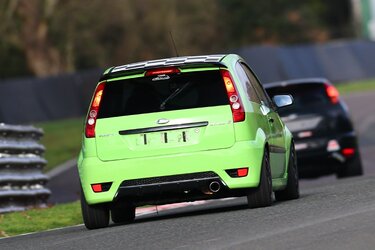
using Adobe Photoshop Version: 22.1.0 how would i "paste" an image of a registration plate onto the rear of our track car , many thanks

OP Fiesta.jpg
 
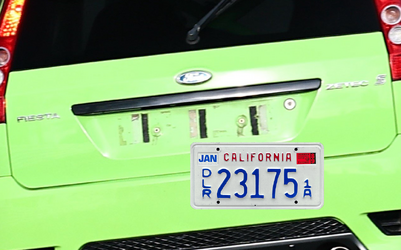
Find a suitable registration plate image and copy/paste it as a new layer above your car image.

1769550161604.png


  • Temporarily reduce the layer opacity of the registration plate to about 55% so that you can see through it.
  • Use the Move tool to position the top-left corner of the plate into position.
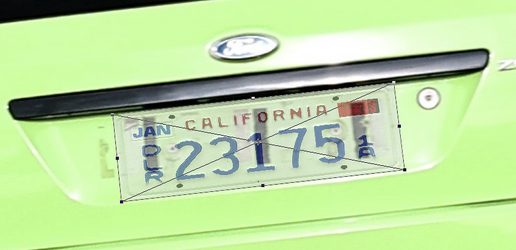
  • Go to Edit>Transform>Distort to individually move the other three corners into position, being mindful of the correct perspective. Use the vertical black marks on the car as a guide for getting the right perspective.
  • With the opacity still at 55%, here's what it looks like:

1769550505063.png


  • Once positioned, bring the layer opacity back to 100%.
  • Optionally, add a drop shadow to give it some realism.
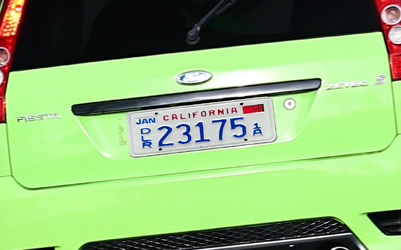
  • Lastly, compare your new plate to the existing car in terms of brightness, focus and saturation, and make any necessary tweaks to it. In my case here, the plate seems more in focus than its immediate surroundings. I did not do it here, but it would be better to add a small gaussian blur to the plate.

1769550611425.png
 
@Rich54 offers a great tutorial. As in all things Photoshop, there are multiple ways in Photoshop to make an edit.

I approached it slightly differently (I'm using PS 26.9 but you should have these tool options available)::

First open a document with the car image and zoom into the trunk lid:
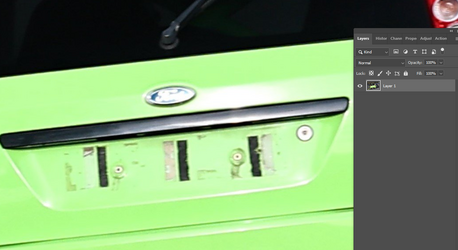
1769638272655.png

Then find an image of a license plate you want to use, copy it, and paste it into the document - make sure it's cropped so that any background is removed:
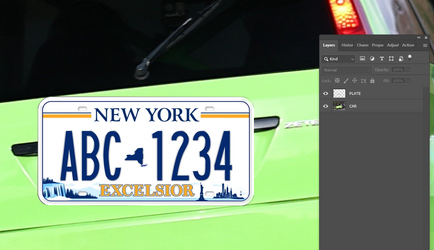
1769638773400.png

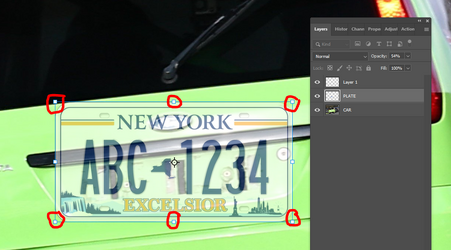
With the plate layer activated, hold down the Ctrl+t keys (CMD key on Mac) which activates the transform tool. A bounding box box will appear on the plate with the four corners indicated; Reduce the opacity to about 50$ so you see the back of the car:
1769639216639.png

With the transform tool still active, move the plate down towards the first black bar, Inside the move tool, you'll see a target icon. Click on that and drag it down to the left lower corner. . This will give a rotational point:
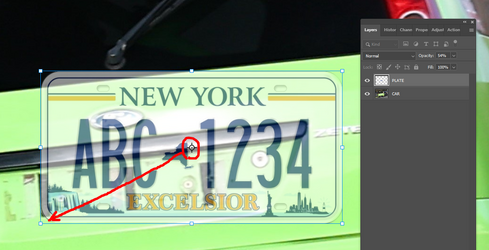
1769640147267.png

With the transform tool still active, go up to just the outside of the right upper click point on the move tool and you'll see a small curved arrow appear. This will allow you to rotate the image to get it positioned on an angle:
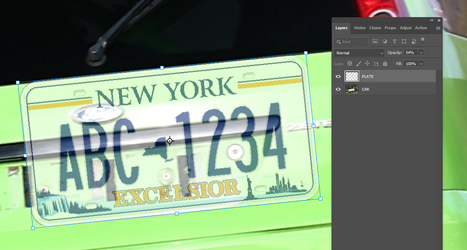
1769640319347.png
With the transform tool still active, drag the upper right corner down to make the plate smaller.
You can also move the plate by click and holding inside the bounding box to move the image where you would like it to be:
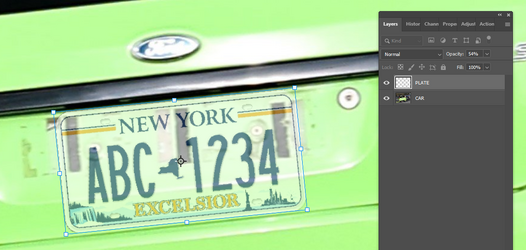
1769640625228.png

Now click on the check mark in the top menu to accept the changes.

menu bar.JPG
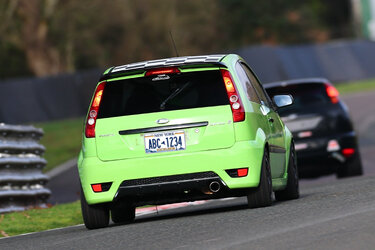
Increase the plate layer opacity to 100% and you have it.
You could add a bit of blur as well to get closer to the overall image. You can also alter the size by hitting Ctrl+t again and resize using the transform tool. I don't think this needs much of a perspective change but you could warp it as needed.

licenseplate.jpg
 

Back
Top