What's new
Photoshop Gurus Forum

Welcome to Photoshop Gurus forum. Register a free account today to become a member! It's completely free. Once signed in, you'll enjoy an ad-free experience and be able to participate on this site by adding your own topics and posts, as well as connect with other members through your own private inbox!

Photoshop colours


oodya

Well-Known Member
Messages
79
Likes
10
Hello,

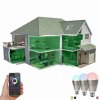
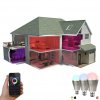
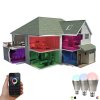
I am wondering if someone can help please? I paid someone to create me an image on Photoshop - which had different colour effects on a house (see attached photo).

I am now looking at changing the colors i.e. making all the rooms Red then Blue then Green etc to demonstrate my product.

I contacted the person that made the image, but he's not being very helpful and providing me with minimal information back.

Would anyone be able to help with this?

It would be much appreciated.
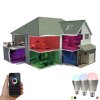
Colour question.jpg

Thanks in advance.
 
Do you mean to have 3 colors per room instead of just one as they are now?
 
Hi,

Thanks for your message. Sorry - I do not think I explained myself properly. I am looking to change all the room colours to Green for example. I was sent the .psd file by the person that designed it, but I cannot for the life of me see where / how I can change the color.

In short, I am looking to have all the rooms color to be set to Green.

I cannot see any colour overlays on Photoshop.

Any ideas?

Thanks in advance.
 
oodya select each room with pen tool and once u madke the path right click on it and convert the path to selection and play with hue and saturation. Gurus can explain u better thou.Its my instant solution to your query .All the best.

zoes_hues.png


PS: I played with the 3 rooms only


PSD:

View attachment zoes_hues.psd
 

Attachments

Last edited:
If you are a Photoshop user..are you familiar with the Color Replacement tool? You could also use the Replace Color function under Image/Adjustments/Replace color. This is about a 5 minute job with either.
(I am assuming that the image is flattened with no layers. If the layer structure is there for each color, you could change the color overlay using Fx for the layer. It looks like this may have been done and the opacity of those layers set to make them transparent so you see the furniture etc in the room.)
I did this one with the Color Replacement tool in under 3 minutes.
Colour question (1)2.jpg
 
Last edited:
Absolutely perfect. Many thanks to both of you. The hue and saturation method worked as did the replace color method. I use Photoshop on a very 'newbie' level. I learned something new today :)

Again - thank you both very much - it is really appreciated.
 
Sorry - just one more question - I have managed to adjust the color - but what is the best way to match it exactly?

I have managed to set the room colors to Green - but is there any way to set the colors so they are matching exactly?

Some look a bit lighter and other darker.

Or do I just mess around with both methods to see how I can get it to the closest match?

Thanks for your help so far!!
 
What method did you use? If you use what I explained to you with the color replacement tool, all you do is use the eyedropper tool on the color you want to match. When you sample that color ( your tool should be set to something like a 3x3 sample) that then becomes the foreground color. The Color Replacement tool only acts on the starting color to replace with the foreground color. If you want to set a specific color code, double click the foreground color. That brings up a dialogue box that allows you to look for and select the color you want. If your not experienced with PS this can be a little confusing.
(There is also a Match Color function also under Image Adjustments, but that's another explanation that I don't think you have to learn at this point.)
 
Last edited:
Hi,

Thanks for your message and patience. I am using the color replacement tool. Can you let me know what you mean by 3x3 sample please?

It's really odd because I set the Red as BA3732 for both the top main room and the bottom room, but the shade looks very different (see attached file)

I must be doing something wrong.

Any ideas?

Thanks again :)Colour question 2.jpg
 
Your top bedroom color is 173 Red/ 54 Blue/ 49 Green. Your other one is 145 /180/ 73. Again, if you want all to be the 173/54/49 use your eyedropper to set the foreground color. In the bottom screenshot, look at the very top left at the drop down box that has 3x3 in it. When the eyedropper is the active tool that control panel is active and those settings can be changed. (This is true for any tool)
bg color.JPG
bg color2.JPG
 
Last edited:
Thank you for your message again. I tried it again - and think I'm definitely missing a step.

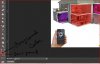
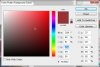
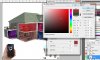
I have attached the two steps that I am doing. I am using the eyedropper tool 3 by 3 average to select the Red color (step 1 attachment).

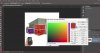
I then go to 'Image', 'Adjustments' and 'Replace color' (while the Green layer is selected). I then use the eyedropper tool to select the green color (selection color). I then click on the 'Result' color and replace it with the Red R 156, G 48, B 50 (as per step 1), but still get poor results.

I have also attached the .psd file.

Any ideas?

Thanksstep 1 - use eyedropper to select red colour.jpgstep 2 - replace colors.jpgstep 3 - attempt to change green color.jpg
 

Attachments

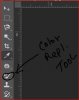
Step 1. Select the eyedropper tool. Sample one of the colors you want to use (from your existing screen)
This will enter it as the foreground color.
Step 2. Select the Color Replacement Tool (in the flyout under the Brush tool)
Step 3. You can make the CRT size bigger by pressing the right bracket key (I am assuming your on a Windows machine)
Step 4. Simply start painting on the color you want to replace. The CRT effects only the first color you click on. It should be changing the color to the chosen foreground color. Repeat procedure until finished.
That's it.
 
Your quite welcome. Glad I could be of assistance.
 

Back
Top