What's new
Photoshop Gurus Forum

Welcome to Photoshop Gurus forum. Register a free account today to become a member! It's completely free. Once signed in, you'll enjoy an ad-free experience and be able to participate on this site by adding your own topics and posts, as well as connect with other members through your own private inbox!

Photoshop Request


streetboi1208

New Member
Messages
2
Likes
0
I want to see if any one can turn this logo into a puzzle piece,with the pieces slightly moved.

Im trying to send out an e-mail to my team, about team work, and thought that would be a cool idea.


Can anyone help?
 

Attachments

  • square.jpg
    square.jpg
    170.9 KB · Views: 29
There are many tutorials and even plug-ins out there that address this. Have you tried a search? Here is a link to a search I just did that I suspect will ans your question (the search term was "photoshop puzzle plugin") http://www.google.ca/search?num=100...109,d.b2I&fp=a31781e9cfbbdd2a&biw=975&bih=589

I hope this helps.

PS: I am assuming that you have PhotoShop and are prepared to do this yourself,,,,or are you looking for someone to do it for you?
 
Last edited:
was looking for help.. i keep trying but all i can do is a make a puzzle piece together, I'd like to have the pieces, technically apart
 
How to make a jigsaw puzzle in Photoshop

Bgood gave you some excellent leads. Assuming that none of the plugins or the stand-alone puzzle software gave you the control you want, here's a completely manual way to do it:

1. Use the pen tool to make a more-or-less rectangular grid of wiggly paths. These will become the cut lines.

2. On a new layer, give all these paths a 1 px hard stroke in some color. I used green, but you can use anything you want.

3. Put a solid color layer under the layer containing the stroked paths. I used white, but you can use anything you want as long as it contrasts with the color of the stroked paths.

4. Merge these two layers. The result will remain the top layer in the layer stack for the rest of the process.

5. Click on the top layer to select it.

6. Select the Magic selection tool and click it somewhere within the boundaries of the 1st puzzle piece.

7. Click on the background layer to select it.

8. Hit cntrl-C, then cntrl-V to copy that part of the background layer onto its own layer.

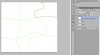
9. Repeat steps 5 - 8 until you have each piece on a separate layer. The first of the attached screen shots shows the layer stack while working on the 3rd puzzle piece.

10. Make a group that contains all the individual pieces.

11. Increase the size of the canvas by 30 - 50% (depends on how far you want to spread the pieces apart).

12. Insert a new empty layer between the bottom of the "puzzle pieces" group and the original background layer.

13. Fill this layer with some suitable background. I used something that looks vaguely like bubbles.


14. Move the individual pieces apart in whatever way you like.

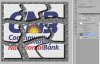
15. Double click on the "puzzle pieces" group layer to add various effects to all the puzzle pieces. I turned on "bevel & emboss", "stroke" and "drop shadow".

16. Save the result, because you are done.


HTH,

Tom M
 

Attachments

  • screen_shot01-making_the_3rd_piece-xnv_698px_wide.jpg
    screen_shot01-making_the_3rd_piece-xnv_698px_wide.jpg
    43.6 KB · Views: 28
  • screen_shot02-final_touches-xnv_698px_wide.jpg
    screen_shot02-final_touches-xnv_698px_wide.jpg
    142.3 KB · Views: 26
  • z-logo-tjm01_ps01a-01_full_rez-xnv_500px_wide.jpg
    z-logo-tjm01_ps01a-01_full_rez-xnv_500px_wide.jpg
    133.7 KB · Views: 28
Last edited:
was looking for help.. i keep trying but all i can do is a make a puzzle piece together, I'd like to have the pieces, technically apart

Use the same general method Tom has outlined but instead of you creating the shapes of the puzzle pieces use one of the plug-ins generated shapes. Since the plug-ins shapes are black (at least I assume they will be as I have never used any of these plug-ins) when you select the inside of the puzzle piece the selection will stop at the edge, that is, the black boarder (I would use the magnetic lasso tool). Now copy the selection and paste it back Edit>Paste>Paste in Place. Do this for each piece and you will have each piece on a separate layer. Then delete the base layer (the original image) and you can now move each piece as you see fit and then, finally, merge the layers.
 
Last edited:

Back
Top