

Tom Mann
Guru
- Messages
- 7,125
- Likes
- 4,312
Hi Chroni -
I'm very glad to see that you know how to replace a background. You actually did quite a nice job on that task.
However, what you don't seem to understand (in spite of saying this several times) is that if you want the subjects to look like the examples you posted you either have to use supplementary lighting (which takes only a few minutes to set up), or you will have to be very accomplished in PS, and then spend hours in Photoshop burning and dodging their faces and bodies, and, and even if you do this, it will still never look as good as if you just had some extra lights on the subjects.
For example, look at the shadows on the ground in the last example image you posted. There are shadows in back of the subjects and leading away from them to both the left and the right. It couldn't be clearer that in this image, the photographer used one flash to the left of the camera, and another to the right, both at a few feet off the ground.
You have a little flash unit built into your camera, a Sony SLT-a65v. If you do nothing else, just turn on your flash unit. Even though it's small and built into your camera, it is better than nothing.
That being said, there are some fairly simple things one can do in post processing to your last image (the one with the new background) that will make it much more dramatic, but once again, I have to warn you that doing so simply can not possibly make the result look like the examples you posted.
To start, for comparison, here are your originals, down rez'ed so that they display correctly in-line in the forum, and will be present even if your links to these photos break.
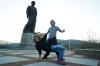
Before replacing the sky:
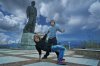
After you replaced the sky:
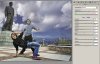
First, bring your composite image into ACR and use the settings shown below:
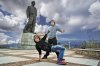
Next, export it into PS. It will now look like this:
Finally, apply the commercial plugin called Topaz Adjust (using the correct settings), and you will get the following.
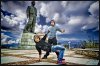
If you want to take this process further, you can select the subjects and do further processing on them, as well as slightly reduce the brightness of everything else in the image.
Obviously, there are many, many adjustments that have to be done correctly in each of these two steps. The only way to know how to make these adjustments is to practice a lot (eg, months) with both ACR and Topaz Adjust. Don't think that you can develop a preset (in either) that you will be able to apply to any picture and get similar results. It just doesn't work that way. Every image is different.
HTH,
Tom
I'm very glad to see that you know how to replace a background. You actually did quite a nice job on that task.
However, what you don't seem to understand (in spite of saying this several times) is that if you want the subjects to look like the examples you posted you either have to use supplementary lighting (which takes only a few minutes to set up), or you will have to be very accomplished in PS, and then spend hours in Photoshop burning and dodging their faces and bodies, and, and even if you do this, it will still never look as good as if you just had some extra lights on the subjects.
For example, look at the shadows on the ground in the last example image you posted. There are shadows in back of the subjects and leading away from them to both the left and the right. It couldn't be clearer that in this image, the photographer used one flash to the left of the camera, and another to the right, both at a few feet off the ground.
You have a little flash unit built into your camera, a Sony SLT-a65v. If you do nothing else, just turn on your flash unit. Even though it's small and built into your camera, it is better than nothing.
That being said, there are some fairly simple things one can do in post processing to your last image (the one with the new background) that will make it much more dramatic, but once again, I have to warn you that doing so simply can not possibly make the result look like the examples you posted.
To start, for comparison, here are your originals, down rez'ed so that they display correctly in-line in the forum, and will be present even if your links to these photos break.
Before replacing the sky:
After you replaced the sky:
First, bring your composite image into ACR and use the settings shown below:
Next, export it into PS. It will now look like this:
Finally, apply the commercial plugin called Topaz Adjust (using the correct settings), and you will get the following.
If you want to take this process further, you can select the subjects and do further processing on them, as well as slightly reduce the brightness of everything else in the image.
Obviously, there are many, many adjustments that have to be done correctly in each of these two steps. The only way to know how to make these adjustments is to practice a lot (eg, months) with both ACR and Topaz Adjust. Don't think that you can develop a preset (in either) that you will be able to apply to any picture and get similar results. It just doesn't work that way. Every image is different.
HTH,
Tom
