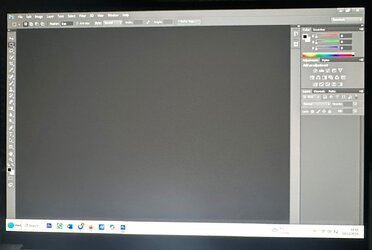
I have just removed Adobe CS5 Extended from my laptop as I bought a copy of CS6 Extended because I thought it might be better suited to Windows 11. Trouble is everything is so small I can’t see it! I had this same problem with CS5 when I moved it from my Windows 10 laptop to my new Windows 11 laptop as my resolution had gone from 1200 x 900 to 2880 x 1800. I solved that by going opening regedit and going to HKEY_LOCAL_MACHINE > SOFTWARE > Microsoft > Windows > CurrentVersion > SideBySide. Then right click and select NEW > DWORD (32 bit) Value. Named this PreferExternalManifest, then modify and changed the 0 to a 1 and selected decimal clicked OK and exited regedit.
So far so good but now I’m stuck. I know I had problems the last time but somehow managed to resolve them but for the life of me I can’t get it sorted this time. Bear with me as I’m 71! Part two of the fix is ‘Create and place the external manifest files’ and this is where I get lost. I have the manifest.txt file but have no idea what to do with it. I also have the photoshop.exe.manifest file so I dragged this into the C:\Program Files\Adobe and it shows up there as a 2 KB Manifest file. So I’m guessing that should be it however when I click on the Photoshop Icon to open it I get the following message; Your system does not meet minimal requirements. (Service Pack 3+) Now if I right click and run as administrator it open up okay but everything is still small.
I’m using an Asus Zenbook with a 1 TB hard drive and 32 GB of ram and an Intel Ultra 9 processor so I would think that was more than minimal requirements! Help!
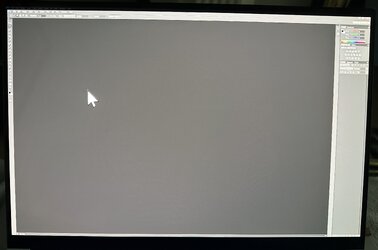
So far so good but now I’m stuck. I know I had problems the last time but somehow managed to resolve them but for the life of me I can’t get it sorted this time. Bear with me as I’m 71! Part two of the fix is ‘Create and place the external manifest files’ and this is where I get lost. I have the manifest.txt file but have no idea what to do with it. I also have the photoshop.exe.manifest file so I dragged this into the C:\Program Files\Adobe and it shows up there as a 2 KB Manifest file. So I’m guessing that should be it however when I click on the Photoshop Icon to open it I get the following message; Your system does not meet minimal requirements. (Service Pack 3+) Now if I right click and run as administrator it open up okay but everything is still small.
I’m using an Asus Zenbook with a 1 TB hard drive and 32 GB of ram and an Intel Ultra 9 processor so I would think that was more than minimal requirements! Help!
Last edited: