What's new
Photoshop Gurus Forum

Welcome to Photoshop Gurus forum. Register a free account today to become a member! It's completely free. Once signed in, you'll enjoy an ad-free experience and be able to participate on this site by adding your own topics and posts, as well as connect with other members through your own private inbox!

question about color replacement after doing leveling


psgurutobe

Member
Messages
5
Likes
0
apologies in advance: i am not sure how to put it in coherent sentences so i will write down what i did, and what happened, and ask why and how to get around this.

1) i selected some area in an image
2) i did brightness adjustment in that area
3) i select color replacement tool and matches it to another color outside my selected area
4) i color my selected area with this new color

problem: the color is darkened to the same level as my brightness adjustment.

what i want: do color replacement while keeping the shadows and highlights on the area after brightness adjustment but get the "unbrightened" color.

is this possible? i find it interesting that regardless of the color i choose, when i paint over the brightened area, its always dark gray of some sort.

thanks in advance
 
apologies in advance: i am not sure how to put it in coherent sentences so i will write down what i did, and what happened, and ask why and how to get around this.

1) i selected some area in an image
2) i did brightness adjustment in that area
3) i select color replacement tool and matches it to another color outside my selected area
4) i color my selected area with this new color

problem: the color is darkened to the same level as my brightness adjustment.

what i want: do color replacement while keeping the shadows and highlights on the area after brightness adjustment but get the "unbrightened" color.

is this possible? i find it interesting that regardless of the color i choose, when i paint over the brightened area, its always dark gray of some sort.

thanks in advance

Hello,
if I understand you correctly, you used adjustment level to manipulate brightness and then transferred colour into this area. Adjustment levels work like photo filters, they change whatever you look through them, so you have to put it to some level "above" the filter, where it does not modify it. Or you can mask the adjustment in place where you put the colour. I hope I understood you well, correct me if not.
Best regards,
Peter
 
Hello,
if I understand you correctly, you used adjustment level to manipulate brightness and then transferred colour into this area. Adjustment levels work like photo filters, they change whatever you look through them, so you have to put it to some level "above" the filter, where it does not modify it. Or you can mask the adjustment in place where you put the colour. I hope I understood you well, correct me if not.
Best regards,
Peter

first, thank you for the swift response. and yes thats exactly what i meant. can you explain how i put it on some level above the filter? or mask the adjustment layer? so it is possible to make something brighten to make the shades/curves more pronounced and then replace the "weirded out" color with natural color from somewhere else in the image while maintaining the sharper shades/curves?
 
If I understand, you want to change the brightness in an area, then change the color. But I don't understand what you are describing as weirded or grey color.

What I think peta was saying is

1) make a layer above the adjusted selection area, make the selection active, then fill this with color. You will need to change the blend mode or opacity for it to keep the same highlights and shadows, so you may need to play with the color or copy the color layer and use multiply or something.

2) there is a mask that is part of the adjustment layer and you can use this the same as you would a layer mask and paint on it with black (recommend a soft, low opacity brush) to reduce or eliminate the affect of the filter in those areas you paint.

If we can't seem to get at your issue, post your psd for us to look at. We are, after all, visual artists and some of us comprehend images better than the written word. Can you imagine that? :mrgreen:
 
Just in case I will put in another words what ibclare in majority already wrote.
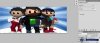
layers.jpg
Both layers have the same picture, the lower one ( background ) is darkened by adjustment level.
1 - the layers are like slides when you look at them from above and the adjustment layer affects everything below it. So if you want something not to be affected, you just put it anywhere above the adjustment, as I did with the "Not affected layer"
2 - mask is the square on the right of any layer icon and it makes exception, whatever is black is a "hole" through the level. That is why everything is normal, just the center is dark as set with the adjustment layer.
 
thank you peta62 and ibclare for your detailed explanations. it was well done and i understand the layer hierarchy better now. and like ibclare said, i think i am not good at writing so my questions didnt get across correctly. so i found some image online and try to show what i mean.

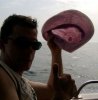
original image:

imag1.jpg
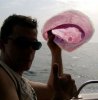
now i want to brighten and increase contrast of the hat so i can see the shadows and outlines of it better (this example probably doesnt show that but for images under bright sunlight or the rest of image is in sunlight but something is not, you cant really see the area well. it becomes kind of blurred out in a way. so doing this adjustment i can make that area more visible). so i circled the area and did the brighten/contrast as well as some leveling. what i got is the following image

imag2.jpg

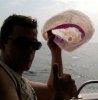
now say i want to replace the color of the hat with the color of the sky. so i click the color replacement tool, and sample the color of the sky by pressing alt and click. then i paint over the hat. resulting image is this:
imag3.jpg

notice the color of the hat is not the same as the sky? from you guys' detailed explanation, i understand that this is because the layer on the hat is brightened, so the color will also be brightened as well. so my question is, is it possible to make the color replacement exact same color as the sky (un-brightened) while maintaining the newly shadows/curves/highlights?
 
What you want to do is a hue/saturation adjustment layer. Make sure it is a clipping layer so it doesn't affect the whole image. If you're unsure how to do that, easiest is to go to layer>new adjustment layer>hue/saturation and check "use previous layer ..." Then adjust the sliders to get the color you want. Use the hue slider to get the general color, then adjust the saturation and lightness levels for shade, tone, and color adjustment.
 
hi. i tried using the new adjustment layer and brightened it up, but when i use color replacement tool to paint over it, i still see the effect of that adjustment. like even i sample white on the picture, then i paint on the hair, it becomes green or some sort. i want it to be white like the unadjusted area. is that possible?
 
Hello,
I have got an idea, which is not exactly straight forward, but works and one my friend confirmed she would do it the same way. I would save the whole picture as jpg and open it in another Photoshop tab first. Then I would save the selection ( shape of the mask not picture ) of the hat, load it into the jpg tab, make the colour manipulation from sky there, since there are no adjustments levels and copy the hat from jpg tab back to the original picture to layer ABOVE the adjustments layers, I would create special layer just for the hat.
Hope this helps,
Peter
 
Last edited:
Hello, I have got an idea, which is not exactly straight forward, but works and one my friend confirmed she would do it the same way. I would save the whole picture as jpg and open it in another Photoshop tab first. Then I would save the selection ( shape of the mask not picture ) of the hat, load it into the jpg tab, make the colour manipulation from sky there, since there are no adjustments levels and copy the hat from jpg tab back to the original picture to layer ABOVE the adjustments layers, I would create special layer just for the hat. Hope this helps, Peter
if i copy the hat from a different jpg, wouldnt it not show any of the brightness/contrast adjustment done on it to sharpened the curves or something like that
 
if i copy the hat from a different jpg, wouldnt it not show any of the brightness/contrast adjustment done on it to sharpened the curves or something like that

It will, since it is "your" modified jpg, you have to save your picture with already modified hat by adjustment layers just before you want to copy the blue sky colour as jpg, so it has all your modifications, you save it and then copy the hat from it, so it is modified by those adjustment layers, but not affected by them in the new place above them.
The disadvantage is if you want to come back to change adjustment layers, you would have to do the whole save&copy procedure again, but I do not see another way.
 
To do what you are discussing, I don't see any need to do a separate jpeg as you can do a copy-merge within the same document.

I am thinking peta, given the nature of confusion from the OP, that he has very little background in Photoshop and doesn't really know what he needs to know.

If this is the case psgurutobe, then you need to learn the basics of the program and tackle this problem you are having once you have some idea of what you are doing. What you want to do seems quite simple but you keep going back to your original puzzle and making it complicated.

I do not think you will be able to be given any further guidance unless you post your psd and tell us exactly what your goal is.
 
To do what you are discussing, I don't see any need to do a separate jpeg as you can do a copy-merge within the same document.

I did not know that, thank you :-)

About the rest I do not know, it is hard to find out, some people have language barrier, some lack experience, some just need some explanation so that everything starts to click together. I remember my start, I tried to learn by books and trying, it was really painful, I could not do anything right until I saw video training manuals like Kelby and Lynda.com, later of course on youtube. Just understanding layers, masks and selections helped me to use Photoshop instead of fighting with it. I think I will always be photographer who uses Photoshop to improve pictures rather than some Photoshop magician, but I am still trying to improve and to learn to do things better and easier. But for this you need to understand basics, exactly as you write. The question is how far is who from understanding it and what he needs.
 

Back
Top