
Photoshop Gurus Forum
Welcome to Photoshop Gurus forum. Register a free account today to become a member! It's completely free. Once signed in, you'll enjoy an ad-free experience and be able to participate on this site by adding your own topics and posts, as well as connect with other members through your own private inbox!
You are using an out of date browser. It may not display this or other websites correctly.
You should upgrade or use an alternative browser.
You should upgrade or use an alternative browser.
Remove gray shadows and preserve handwriting
- Thread starter Magixo
- Start date

ibclare
Queen Bee
- Messages
- 9,890
- Likes
- 4,028
Hi Magixo, welcome to the forum.
I don't do this kind of thing, so someone may have better ideas. What I would do is use the blend if options. First however, you should select the varying degrees of pale grey handwriting and copy them to separate layers, ctl/cmd + J.
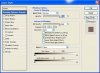
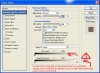
Then go down to bottom of layer column, click the fx and choose blending options. See the sliders. The top row is for this layer. Choose the white slider on the right and slide it inwards. If need be split the slider in half by holding down the alt/opt key and clicking on the left half. Experiment with the results doing it one way or the other.
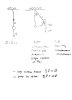
You will likely have to make copies of each layer and set the top one or two to multiply. Then you will need to do some cleanup with the eraser. Here is what I did. Didn't take too long, but you are not going to fly through this in just one or two steps (unless like I said there's a PS magician who knows a good trick and there might well be).
OTOH, here is a tutorial for lineart selection. I don't know which might be easier but you could try both and see which you like better.
http://krysjez.wordpress.com/2009/02/22/extract-lineart-in-8-simple-steps/
I don't do this kind of thing, so someone may have better ideas. What I would do is use the blend if options. First however, you should select the varying degrees of pale grey handwriting and copy them to separate layers, ctl/cmd + J.
Then go down to bottom of layer column, click the fx and choose blending options. See the sliders. The top row is for this layer. Choose the white slider on the right and slide it inwards. If need be split the slider in half by holding down the alt/opt key and clicking on the left half. Experiment with the results doing it one way or the other.
You will likely have to make copies of each layer and set the top one or two to multiply. Then you will need to do some cleanup with the eraser. Here is what I did. Didn't take too long, but you are not going to fly through this in just one or two steps (unless like I said there's a PS magician who knows a good trick and there might well be).
OTOH, here is a tutorial for lineart selection. I don't know which might be easier but you could try both and see which you like better.
http://krysjez.wordpress.com/2009/02/22/extract-lineart-in-8-simple-steps/



Vafann
Guru
- Messages
- 1,334
- Likes
- 367
ibclare
Queen Bee
- Messages
- 9,890
- Likes
- 4,028
The issue with this image, however, is that there are levels of very fine grey that will disappear and so the document needs to be made into selection layers or you lose pieces of it.
Changing levels is definitely another way to do it, but I think you will still need to make separate layers of the different ranges of grey. This tutorial that I listed earlier uses levels adjustment: http://krysjez.wordpress.com/2009/02/22/extract-lineart-in-8-simple-steps/.
Changing levels is definitely another way to do it, but I think you will still need to make separate layers of the different ranges of grey. This tutorial that I listed earlier uses levels adjustment: http://krysjez.wordpress.com/2009/02/22/extract-lineart-in-8-simple-steps/.
Last edited: