
Photoshop Gurus Forum
Welcome to Photoshop Gurus forum. Register a free account today to become a member! It's completely free. Once signed in, you'll enjoy an ad-free experience and be able to participate on this site by adding your own topics and posts, as well as connect with other members through your own private inbox!
You are using an out of date browser. It may not display this or other websites correctly.
You should upgrade or use an alternative browser.
You should upgrade or use an alternative browser.
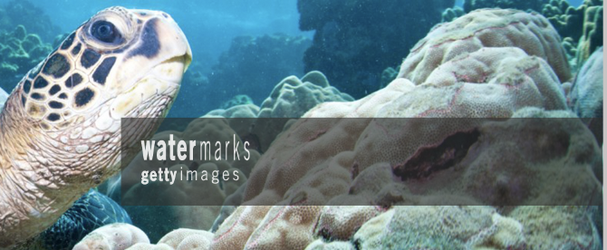
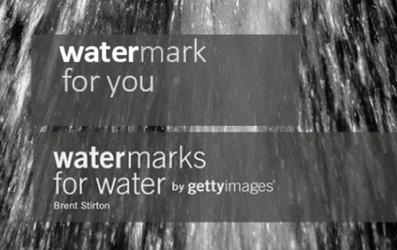
Replicate the Getty images watermark
- Thread starter H_GG
- Start date

- Messages
- 24,336
- Likes
- 13,736
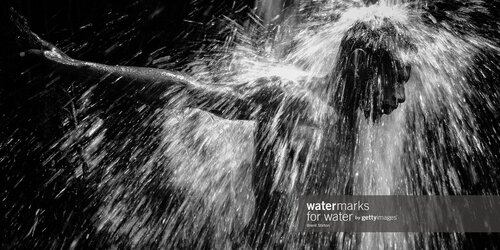
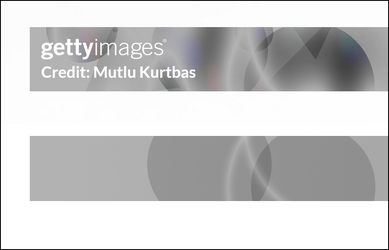
Hey! For the first one!
Here's my tip for making a similar style watermark. What do you see? Take a look at the watermark and break it down to it's components. What do you see?
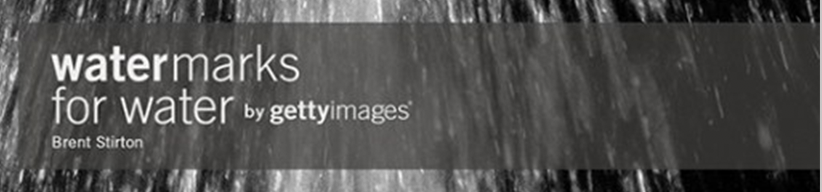
I see text on a rectangle. They both have reduced opacity.
Create the rectangle and fill with a good guess as to the color.
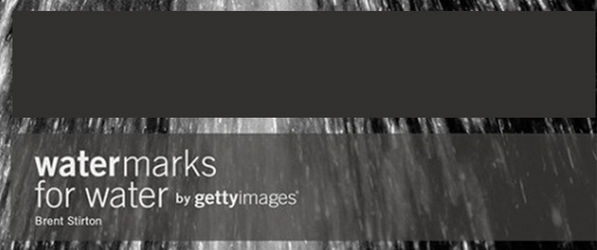
Reduce the rectangles opacity until it's close.
Then, on new layers (so they can me edited separately) add in your text and reduce its opacity.
So this would be my completed watermark. All I need to do is add it to an image, position, and reduce its opacity. While testing this, I may have to separate the text from the rectangle in order to make it look more like the original.
Here's my tip for making a similar style watermark. What do you see? Take a look at the watermark and break it down to it's components. What do you see?
I see text on a rectangle. They both have reduced opacity.
Create the rectangle and fill with a good guess as to the color.
Reduce the rectangles opacity until it's close.
Then, on new layers (so they can me edited separately) add in your text and reduce its opacity.
So this would be my completed watermark. All I need to do is add it to an image, position, and reduce its opacity. While testing this, I may have to separate the text from the rectangle in order to make it look more like the original.

- Messages
- 2,570
- Likes
- 3,099
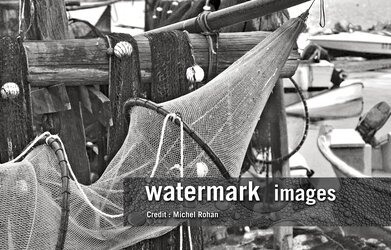
Qite the challenge- like Sam, my first thought was the opacity of the box. The rest is just playing with type.
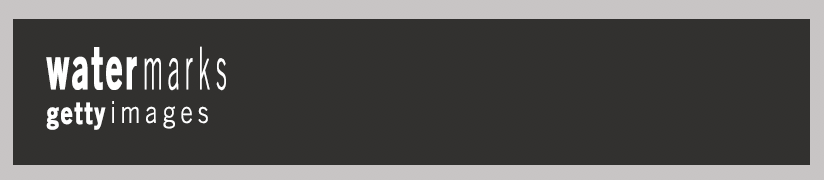
Here's where I ended up:
Here's what I did - probably more complex than needed but I was gong for an exact match: And I tend to be a bit OCD...
-create a rectangular box and fill it with Gray hex #676664 (R103/G102/B100)
- reduce the opacity to 78%
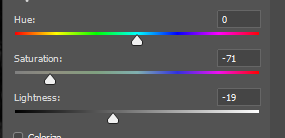
- I then adjusted it with a Hue/Saturation layer:
- I chose Calibri as the type - you can use whatever typeface you like - and set it in Bold face and Light face with each word on a separate layer so you can adjust.
For the Light typeface, I reduced the opacity to 72%.
Again, maybe too complex but then again you only have to create it once...
*Edit - and make sure you save your work as a png to preserve transparency...
Here's where I ended up:
Here's what I did - probably more complex than needed but I was gong for an exact match: And I tend to be a bit OCD...
-create a rectangular box and fill it with Gray hex #676664 (R103/G102/B100)
- reduce the opacity to 78%
- I then adjusted it with a Hue/Saturation layer:
- I chose Calibri as the type - you can use whatever typeface you like - and set it in Bold face and Light face with each word on a separate layer so you can adjust.
For the Light typeface, I reduced the opacity to 72%.
Again, maybe too complex but then again you only have to create it once...
*Edit - and make sure you save your work as a png to preserve transparency...
Last edited:
 -))
-))
- Messages
- 24,336
- Likes
- 13,736
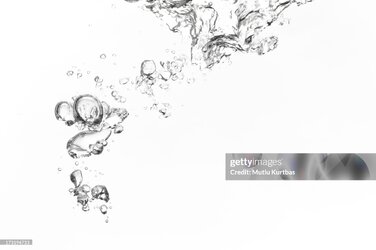
As for the second getty watermark..............what do you see?
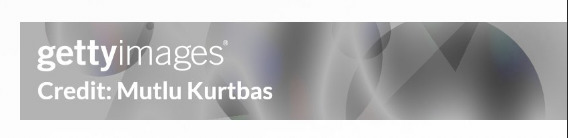
A rectangle? Yes.

What else do you see? A rectangle with shapes? Yes. I count 7 shapes.
Do the shapes overlay one another? Yes. How would I do that? Let's try blending options! Yes......multiply seems to do the trick!
Adjust the opacity to how you like!
Triangles (All on separate layers so I can edit them!)

Circles/Ellipses? (All on separate layers so I can edit them!)


NOTE: All of the added shapes are constrained to the rectangle using a layer mask on group.
This is a start!
How about the bright Ellipses and the color? Let's see in the next post!
A rectangle? Yes.
What else do you see? A rectangle with shapes? Yes. I count 7 shapes.
Do the shapes overlay one another? Yes. How would I do that? Let's try blending options! Yes......multiply seems to do the trick!
Adjust the opacity to how you like!
Triangles (All on separate layers so I can edit them!)
Circles/Ellipses? (All on separate layers so I can edit them!)
NOTE: All of the added shapes are constrained to the rectangle using a layer mask on group.
This is a start!
How about the bright Ellipses and the color? Let's see in the next post!


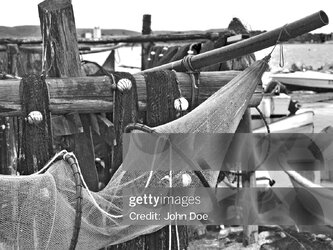
Here's my shot at the glowing rings:
- Using the elliptical marquee tool, drag-out a circular selection.
- Go to Edit>Stroke. Set color to white and stroke size to 3 pixels. Convert this to a smart object.
- Apply a gaussian blur of 2.5 pixels and set the layer opacity to about 33%.
- Copy this smart object to a new layer immediately above the one you just made. Open the gaussian blur smart filter and increase the blur from 2.5 pixels to 8 pixels. Then increase the layer opacity to your taste. (I increased the opacity back to 100%)
- Messages
- 3,383
- Likes
- 3,112
Here is the second watermark as a partially transparent PNG. Below is how it looks on a white background.
This was extracted and modified from the original image with the words removed
John Wheeler

This was extracted and modified from the original image with the words removed
John Wheeler