Skeezix
Member
- Messages
- 18
- Likes
- 1
Rotate and Move a Set of Pixels to Another Area of the Same Photo
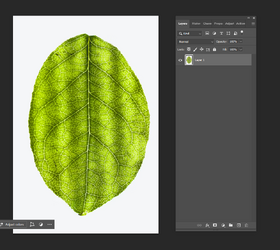
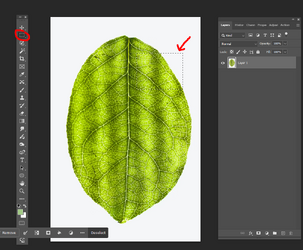
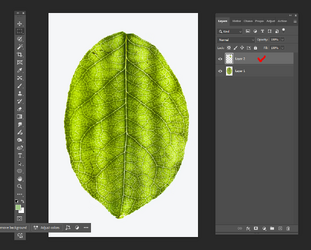
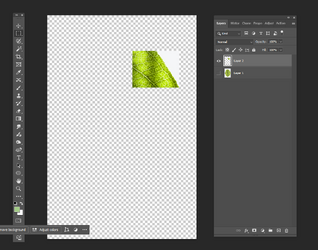
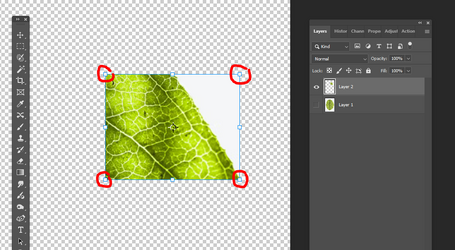
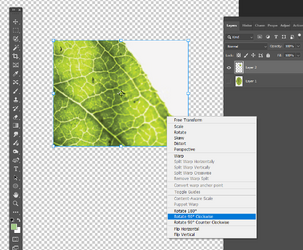
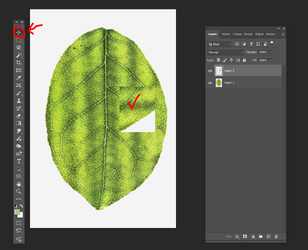
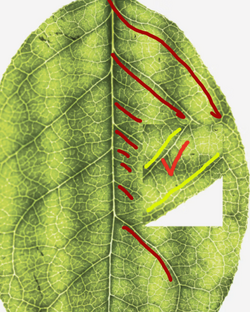
Using Photoshop 7, I loaded a photo and created a square selection area around one small area of the photo. Then I created a new layer showing the pixels in the selected area. Now I would like to turn the pixels in that selection area 90 degrees clockwise and then move them to a new location on top of the original photo. However it's been so long since I last did it that I've forgotten the next steps. Can somebody please help me out and tell me the next step(s), or suggest a website that will explain how to do this?
Thank you!
Using Photoshop 7, I loaded a photo and created a square selection area around one small area of the photo. Then I created a new layer showing the pixels in the selected area. Now I would like to turn the pixels in that selection area 90 degrees clockwise and then move them to a new location on top of the original photo. However it's been so long since I last did it that I've forgotten the next steps. Can somebody please help me out and tell me the next step(s), or suggest a website that will explain how to do this?
Thank you!
Last edited: