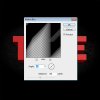
I feel as though this tutorial I have been using below is missing a step. I have been struggling with this attempt at shadows. First is when I set my distance to 155 I barely see any black in my text unlike the example. Second, how does the shadow get so big and extend past the text. My shadow just sits behind the original text unless I move it around and offset it. Thnx for all the help so far! Where has this forum been my whole life :mrgreen:
Step 13: Add Shadows Under the Text
To add the shadows under the text, we are going to Ctrl/Cmd + click on each layer of the text in the Layers Panel to produce a marquee selection around its edgest.
Next, create a new layer and fill the selected area with black (#000000).
Duplicate this layer by hitting Ctrl/Cmd + J so that we have 2 black text layers. Move these layers behind all the other text layers.
Go to Filter > Blur > Motion Blur and make sure the angle goes from the top right to the bottom left so that it is the same angle as our light source.
Step 14: Make the Shadow Darker
Duplicate the shadow layer by pressing Ctrl/Cmd + J. Now link the two layers together and go to Layer > Merge Layers.
Step 13: Add Shadows Under the Text
To add the shadows under the text, we are going to Ctrl/Cmd + click on each layer of the text in the Layers Panel to produce a marquee selection around its edgest.
Next, create a new layer and fill the selected area with black (#000000).
Duplicate this layer by hitting Ctrl/Cmd + J so that we have 2 black text layers. Move these layers behind all the other text layers.
Go to Filter > Blur > Motion Blur and make sure the angle goes from the top right to the bottom left so that it is the same angle as our light source.
Step 14: Make the Shadow Darker
Duplicate the shadow layer by pressing Ctrl/Cmd + J. Now link the two layers together and go to Layer > Merge Layers.