What's new
Photoshop Gurus Forum

Welcome to Photoshop Gurus forum. Register a free account today to become a member! It's completely free. Once signed in, you'll enjoy an ad-free experience and be able to participate on this site by adding your own topics and posts, as well as connect with other members through your own private inbox!

Stuck with a photoshop project (Advice needed)


MrSorsa

Member
Messages
5
Likes
0
Hey guys, I am new and been playing with photoshop for some weeks now. I am very driven and interested in learning everything about picture retouching and creating CGI.

I recently thought that I could make something fun with layers and perspective and I happened to stumble over this picture.

funny-creative-facebook-timeline-cover-7.jpg

How can I creat that image with my own facebook wall? I tried some things and created copies of the layer, but still cant seem to get it to look like that and smooth. Adding the person to the picture is the easy part I guess.

Thank you in advance!
I will continue reading these forums, a lot to learn here!

//MrSorsa
 
There may be an easier way to do this. Hawkeye usually knows better ways than I do and I hope he chimes in!

First prepare your facebook page....
Screen Shot 2014-03-03 at 3.51.14 PM.png

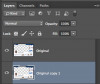
Next use Command/Control + J to make a copy of this layer.
Place the duplicate below the Original layer.
Screen Shot 2014-03-03 at 3.51.54 PM.png

On the duplicate layer, use Command/Control + T to enter the free transform mode.
On the Tool Options Bar reduce the Height and Width of the duplicate. I used 80%.
Screen Shot 2014-03-03 at 3.52.14 PM copy.png

Your canvas should appear like this....
Screen Shot 2014-03-03 at 3.54.28 PM.png

Here's the fun but also confusing part...
Use Shift + Option/Alt + Command/Control + T to duplicate the transformation.

Then use Shift + Command/Control + [ (left bracket key). This will place the newly transformed layer to the bottom of the stack.

You must use these commands for each new layer!
Screen Shot 2014-03-03 at 3.55.08 PM.png

Do this until you get tired..............
It will look like this.
Screen Shot 2014-03-03 at 3.55.41 PM.png

All that's left to do is to use the Move Tool to move each layer into their final position.
Screen Shot 2014-03-03 at 4.06.26 PM.png

Good Luck!
 
Last edited:

Back
Top