What's new
Photoshop Gurus Forum

Welcome to Photoshop Gurus forum. Register a free account today to become a member! It's completely free. Once signed in, you'll enjoy an ad-free experience and be able to participate on this site by adding your own topics and posts, as well as connect with other members through your own private inbox!

Task with 3D tools - photo of human face on a sphere? Any help please?


Molly

New Member
Messages
4
Likes
0
I’m learning Photoshop CS5 3D features and looking for guidance/steps for the following task:

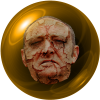
With 3D set of tools, to create a sphere with shiny surface and apply (paste?) on this spherical surface a photo of human face.

I need to do it in such a way that the human face following the spherical surface will get appropriately distorted by shape of the sphere.

Can someone skilled in Photoshop CS5 3D tools , please, help me with this task ?
(No video tutorials,please, I just need material to read an follow the steps)

Thank you in advance!
Molly
 
I'm afraid I don't know too much about the 3D tool in Photoshop, and judging by the lack of posts here I'm guessing that not too many other forum members do either. At least not to be able to fulfil your request.

Here's another way of achieving at least something similar.

Guru-Sphere.png

1. Make a new blank canvas. Duplicate the background layer. Turnoff the bottom layer. Fill layer 1 with black

2. Filter - Render - Lens Flare
Brightness = 100%
Lens type = 50-300mm Zoom
Click OK

3. Filter - Distort - Polar Coordinates
Polar to coordinates
Click OK

4. Image - Rotation - Flip canvas vertical

5. Filter - Distort - Polar Coordinates
Rectangular to polar
Click OK

6. Select and delete the background

7. Image - Adjustments - Hue/Saturation

8. Check Colorize. Adjust to suit and then Click OK

9. Open the image that contains your subject (The human face)

10. Select your subject and with the move tool selected/choosen drag and drop your subject into the centre of your sphere.

11. Filter - Distort - Spherize (100%)

12. Drop the opacity of the subject layer to about 60% or 70%.

That's about it...you're done.

I'm sure there may be a better way of doing this, but at the moment I can't think of one. Perhaps someone else will have some ideas.
 
I am no expert at it, just started playing around with it myself:)
I made this it's what your after.

New layer click 3D icon - new shape from layer 'sphere'.
open file use your image drag into 3D layer, click ok.
Delete original image you do not need it anymore.
click sphere layer see the sphere icon within it (little cube) click it.
tool page now open for settings - select sphere and then click CREATE.

I am not known for my tut skills - but i tried:redface:
 

Back
Top