What's new
Photoshop Gurus Forum

Welcome to Photoshop Gurus forum. Register a free account today to become a member! It's completely free. Once signed in, you'll enjoy an ad-free experience and be able to participate on this site by adding your own topics and posts, as well as connect with other members through your own private inbox!

Tool Issue - Ps showing processing wheel/Cursor.


Reesche

Member
Messages
17
Likes
0
Hello you guys!

I am having an issue with my pen tool in Photoshop.

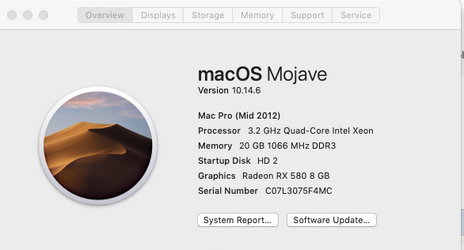
• MAC OS Mojave 10.14.6
• Photoshop CC 19.0 Release


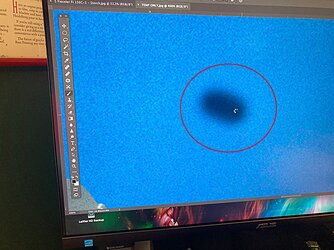
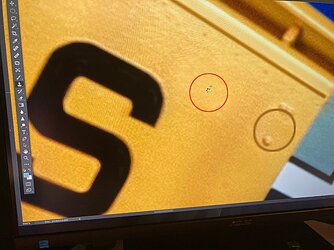
This just popped up ... When I use the pen tool, I start by dragging the Pen Tool and making a line to fill an area, the "cursor turns into a processing wheel" right on top of the cursor. Very irritating since you can not clearly see what you are doing. What is causing this? Is there a preference setting that will get rid of this? If so, where would it be?

See attachment below....

Thank you!
Reesche
1 PS Cursor Issue.jpeg

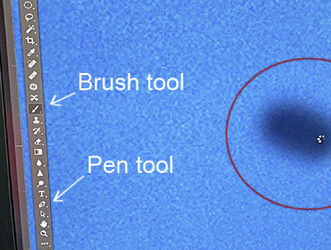
2 PS Cursor Issue.jpeg
 
@IamSam posted a helpful solution to your question.

For any future questions you may have, I'd like to point out that you have committed the same error as you did in your post from last year. You say "Pen tool" when you really mean "Brush tool". In your second attachment, you clearly have the Brush tool activated, not the Pen tool. These are two very different things and this nomenclature error may prevent you from getting helpful replies.


1771789354607.png
 
Yes, I noticed that the OP was having the same issue with the Clone Stamp and the Brush Tools, based on their screen photos, so that's why I felt that the video I posted would cover the issue since it was not really a tool problem. But I agree that you should be accurate in using the proper terms and identity of specific tools when describing the problem.
 
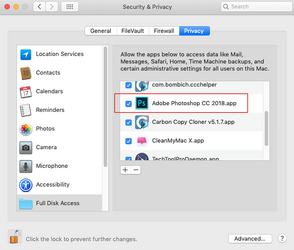
Hello..... I watched the video and went into my Security Preferences and added Photoshop and made sure it was clicked on (see attached)

Rebooted the computer and it is still doing the same thing with the brush and clone stamp tools.

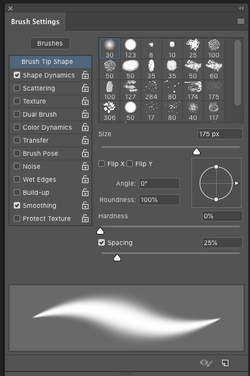
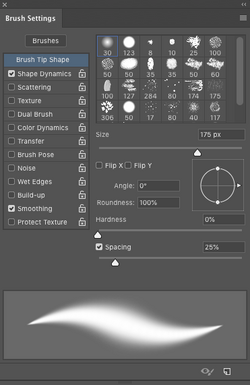
I am attaching a screen shot of my brush settings pane (see attached)

Any other ideas?

Reesche

Screen Shot 2026-02-23 at 10.56.03 AM.png

Screen Shot 2026-02-23 at 11.01.29 AM.png
 
OK, what is the "Smoothing" setting on your Brush Tool? In the Tools Option Bar at the top of the document window........not in the Brush Tool panel!! Set it to 0%

Screen Shot 2026-02-23 at 1.32.33 PM.png

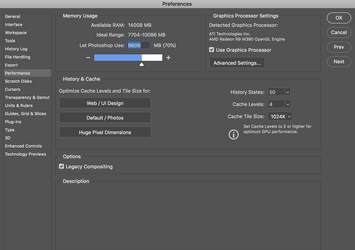
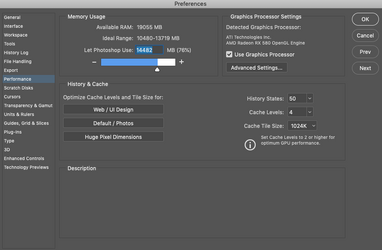
Under Preferences > Performance/Options...........do you have "Legacy Compositing" ticked ON? If not do so.

Screen Shot 2026-02-23 at 2.17.55 PM.png
 
Hi IMSAM.... My "smoothing IS set to 0.

I could not find the check box for the Legacy Compositing button on my version of PS.

Still doing it.....

See attached....


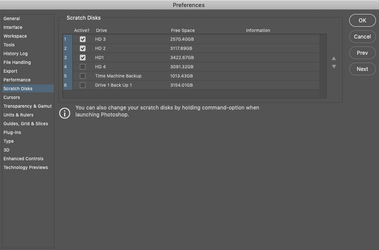
Attached: This is where I am as of now on these (3) panes... I appreciate your effort!

Reesche

Screen Shot 2026-02-23 at 12.52.35 PM.png

Screen Shot 2026-02-23 at 12.53.01 PM.png

Screen Shot 2026-02-23 at 12.56.26 PM.png
 
OK................we can rule out that this is not a specific tool problem. I've found several references to this issue but none really offer a solution other than what I have posted.

I am curious as to when you discovered this issue. Can you comment in details of when you first noticed it. Is this something that just popped up, or has it been going on for awhile? What recent changes have you made that may have caused it?
 
Yes there was a drive that I used often and I got the message that I should back-up my files ASAP and erase the drive and reformat it.

I did that and it reformatted it sucessfully.

Than, I Carbon Copy Cloned that drive from one of my 3 drives on my computer. Everything is working correctly except my brushes in Photoshop.

Reesche
 
Here is a general list of possible fixes. You may want to try some of them.


  1. Reset the Pen tool
    • Right-click (or long-click) the Pen tool icon in the toolbar → choose Reset Tool (or Reset All Tools).
    • Test again.
  2. Toggle GPU acceleration
    • Photoshop → Preferences → Performance → uncheck Use Graphics Processor.
    • Restart Photoshop and test. (If this fixes it, try updating your GPU drivers or turning the GPU back on later.)
  3. Reset Photoshop preferences
    • Quit Photoshop. Relaunch while holding Cmd + Option + Shift and confirm reset when prompted.
    • This clears any corrupt prefs that can cause strange cursor behavior.
  4. Check tablet / input device drivers
    • If you use a Wacom or other tablet, disconnect it and test with mouse/trackpad.
    • Update or reinstall the tablet driver (older drivers often conflict with macOS / Photoshop).
  5. Test in a new document / new user account
    • Create a fresh small document (e.g., 1000×1000) and try the Pen tool.
    • If still happening, try in another macOS user account to rule out account-level settings.
  6. Look at activity / plugins
    • Open Activity Monitor while reproducing the issue — is Photoshop pegging CPU or memory?
    • Disable third-party Photoshop plugins (move them out of Plug-ins folder) and test.
  7. Check Photoshop version & macOS
    • Photoshop CC 19 is an older release. If possible, update Photoshop to the latest CC build that supports Mojave, or update macOS if you can.
    • Also visit Help → System Info and copy that info if you need to contact Adobe.
  8. If it persists
    • Reinstall Photoshop (clean install) and update tablet drivers.
    • Collect Help → System Info and the exact steps to reproduce, then contact Adobe support — they’ll want that info.
 
Hi again IMSAM..... Wow! Lot of testing done.

I did all of your suggestions and even re-installed a new copy of Photoshop CC 2018 and it is still doing the same thing! I can not figure out what is causing the processor clock to do this when I click and hold the mouse button to paint something.

I also made sure that this PS app was included in the System Preferences/securities/Privacy pane.

Any other ideas?

Reesche
 
IMSAM.... I just booted to one of my 3 drives that have Photoshop on them and on the drive 2 I launched PS and it did not do it when I painted lines with the brush tool!?!?

Same version of PS on that drive. PS CC 2018

Reesche
 
IMSAM.... I just booted to one of my 3 drives that have Photoshop on them and on the drive 2 I launched PS and it did not do it when I painted lines with the brush tool!?!?
Great! Is this something you can work with?
 
No... The drive on Disc 2.... (what I am referring to )is NOT what I do my major PS work on. So this is a real inconvenience for me... No articulation on applying color or detail. Very distracting.

Have we entertained the notion that ... certain settings have been changed in time to cause this? I have compared the settings of the Disc 2 PS to Disc 1 PS that I now do the major part of my work on and made sure that they were the same.... but same problem.

PLUS..... I ran Tech Tool Pro 12 and found out that all of my basic functions on my MAC are running correctly......Fans, RAM, etc.

What are you really thinking?

Help if you can....

Reesche

Screen Shot 2026-02-24 at 10.24.04 PM.png
 
Have we entertained the notion that ... certain settings have been changed in time to cause this?
No................if you reset your Ps prefs from step 3 in post #10, then this is not a setting issue. Other than those we have already tried in post #6 and post #10.

I have read that this was a known bug and Adobe never addressed it. The problem for most, was solved by upgrading Ps. I'm still searching.
 

Back
Top