What's new
Photoshop Gurus Forum

Welcome to Photoshop Gurus forum. Register a free account today to become a member! It's completely free. Once signed in, you'll enjoy an ad-free experience and be able to participate on this site by adding your own topics and posts, as well as connect with other members through your own private inbox!

Tracing with the Pen tool


YoungLeiva

Member
Messages
11
Likes
2
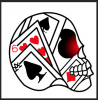
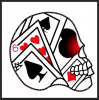
hey guys i need some help...how would you go about tracing.
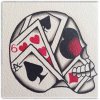
upload.jpg

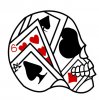
I started but i feel like I'm doing it wrong. This is what I have done I would like some advice on maybe a different way to do it or if im doing it right or anything really to keep me going on the right path. The drawing was done by a friend.
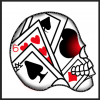
upload2.jpg
I was using the pen to brush method and was trying to add the red glow in the eye and well I found out i couldnt just delete it since i did it on the same layer so there a little red there if you look closely. I would also like some help on how to do that red in the eye and the shadows he added etc. Thanks in advance
 
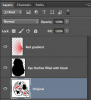
As for tracing, you did a great job. What I would do, since you didn't separate parts into separate paths, would be to just retrace the eye area, create a selection (keep it active), on a layer above, use a red to transparent gradient, and play with the direction and length or the stops on the gradient.

As for the shadows, I guess those were done in this case by painting a soft brush along a selection line. Again, depending on how your sections are created you may need to make another selection if you want to try that method. I'll explain it below. Another method if the selection is on a separate layer is to add an inside shadow layer effect. In either event, the shadows are supplemented by painted shape, dense shadow areas here and there.

So to paint along a selection line.

In this example, you would have a selection of the shape section, such as the triangle at the back top of the skull. You activate that section and drag a soft brush along the edges (I recommend on a separate layer). It will only deposit pigment inside the selected area, so you will get a nice crisp border and not worry about bleeding over the line.

Let me know if any of this helped and what else you might need.
 
Last edited:
Clare is dead on!

In the future, always place each line or section on it's own layer!

What I did here was to outline the eye shape of your rendition of the skull using the Pen Tool.
When done I made a selection of the path.
I created a new layer, and filled the selection with black. Leave the selection (marching ants) going.
Create a new layer and choose your Gradient Tool.
Make your foreground color Red. Choose Foreground to transparent preset from the Gradient Tool editor. In the tool options, choose Radial Gradient icon.
Create a gradient inside the selection.
Command/Control + D to deselect.

Screen Shot 2014-03-06 at 8.22.20 PM.png

Screen Shot 2014-03-06 at 8.11.09 PM.png
 
Last edited:
The shading part requires a little explanation.

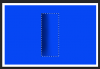
If I use the Brush Tool and a soft brush to paint inside the selection, I will get a hard edge next to the INSIDE of the selection which grows softer as it moves away from the selection. Notice the paint only appears on the inside of the selection.

Screen Shot 2014-03-06 at 8.44.13 PM.png

Here the selection has been deselected.

Screen Shot 2014-03-06 at 8.44.22 PM.png

Lets say I want just the opposite. I want the painting (hard edge) to be on the OUTSIDE of the selection.
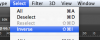
I have to invert the selection! I can go to SELECT > INVERSE

Screen Shot 2014-03-06 at 8.56.13 PM.png

Or use the keyboard shortcut, Shift + Command/Control + I.
Notice I now have a new set of marching ants on the outside edge of my canvas...

Screen Shot 2014-03-06 at 8.44.43 PM.png

Now when I paint, the paint will only appear on the outside of my selection!

Screen Shot 2014-03-06 at 8.45.04 PM.png

Deselected.

Screen Shot 2014-03-06 at 8.45.14 PM.png

I explained this to help you understand how to add the shading. Which I will show in the next post.
 
Now the OP has logged off without a word................ I really should stop trying to help. :bustagut:

Just in case they come back I will finish.

I made a selection of the skull...

Screen Shot 2014-03-06 at 9.04.45 PM.png

And then used the Brush Tool to add the shading....

Screen Shot 2014-03-06 at 9.05.11 PM.png

Here, I made a selection and then added the shading.....

Screen Shot 2014-03-06 at 9.06.14 PM.png

Screen Shot 2014-03-06 at 9.07.29 PM.png

Screen Shot 2014-03-06 at 9.07.38 PM.png

Just continue to make selections and add shading.
 
Last edited:
Now the OP has logged off without a word................ I really should stop trying to help. :bustagut:

Just in case they come back I will finish.

I made a selection of the skull...

View attachment 42925

And then used the Brush Tool to add the shading....

View attachment 42926

Here, I made a selection and then added the shading.....

View attachment 42927

View attachment 42928

View attachment 42929

Just continue to make selections and add shading.

Thanks. sorry ive been busy since I posted this but imma read all and try it myself in the morning. Ill post up how it comes out. I really like how yours came out hopefully the one I do myself comes out close to that.
 
i have literally just registered to this site, and this is my first thread i clicked on, and can i just say i am absolutely amazed at how helpful everyone is here. its a breath of fresh air, and i cant wait to get to know this community.

:offtopic:


i know, but i had to comment.
 

Back
Top