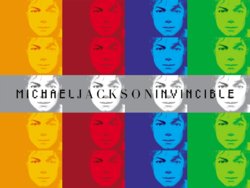
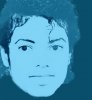
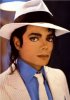
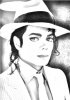
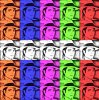
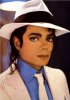
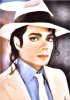
I will take you through the steps you would use with any photo. The image you choose is important. The original has some shadows that help create the final result. The one I posted has a more open face, so the shadows aren't as deep, which is why I darkened some of the hair as well.
First let me say, that there are many ways to do the same thing or similar things in Photoshop. Secondly, the reason that we can look at a manipulated image and make educated guesses as to how it was done, is because we have gotten much of our education through experimentation. So I would suggest you do the same.
Do tutorials that teach you to make effects you like. Soon you will be able to alter these and play around with the ideas in the tuts. Then you will be able to make your own interesting effects. And finally you'll be able to look at a manipulated image and say, I bet that's how it was done. :mrgreen:
As for contours, there are several means in PS, for example: Img>adj>threshold or posterize; filter>art>poster edges; filter>stylize>find edges. Each is different and you have to try them and see.
That said, here is what I did:
- Duplicate your original layer (be safe and keep originals).
- Make a selection of the face, neck, chest that you want to use. I just used the head for this; the original inculdes neck/shoulders.
- Duplicate this layer.
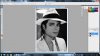
- Make layer adjustment>brightness/conttrast. Adjust contrast and brightness sliders up until you have the amount of detail you want with the proper washed out look. (I have brightness ~100, contrast, 60-70)
- Make a layer above, fill it with the color you want, clip it to your selection (the face img,) and set the opacity to the level of transluceny you want.
- Now make another duplicate of the original and move it to the top of the stack.
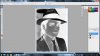
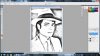
- Go to image>adjustment>threshold and set this so that you have enogh thickness and contrast to create the effect you want in the area you want it.
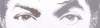
- Now add a layer mask and remove most of the threshold effect, leaving just the dark details. (as I did in the eye and brow, a bit of hair and the right corner of the mouth)
- Now sample the dark color with the threshold effect, make a layer below the face and fill with this dark color. (on the image I posted, I didn't make the BG that dark, but it looks better and closer to the poster this way)
Let me know if you have any more questions. And I would recommend looking around the forum or the web for tutorials someone has already made to help you create unique effects.