Photoshop Gurus Forum
Welcome to Photoshop Gurus forum. Register a free account today to become a member! It's completely free. Once signed in, you'll enjoy an ad-free experience and be able to participate on this site by adding your own topics and posts, as well as connect with other members through your own private inbox!
You are using an out of date browser. It may not display this or other websites correctly.
You should upgrade or use an alternative browser.
You should upgrade or use an alternative browser.




iDad
Guru
- Messages
- 8,715
- Likes
- 2,556
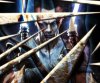
It looks to me as though they selected the areas, used liquify filter then a bit of gaussian blur
I did it on the girls hand area. pretty close, I also feathered the selection a few pixView attachment 5192
I did it on the girls hand area. pretty close, I also feathered the selection a few pixView attachment 5192

ibclare
Queen Bee
- Messages
- 9,890
- Likes
- 4,028
Here's a something I did just to play with the effects. I used the gaussian blue on one of the skies/cloud photo, but decided it worked better with feathers like you said on one layer and opacity changes. Used hue/sat adjustments and distort and warp on the clouds. Played with the liquify effect. Used the radial gradient white to transparent. Anyway that's what I came up with . . . :cool2:
Attachments

Last edited:

$1r_M4x1mu$
Guru
- Messages
- 1,487
- Likes
- 294
Hi dtb I've tried something as well and here;s the result


I'was working in another approach to this work, this involves using the Displacement Map filter under Filters_Distort_Displace
- I've created a new document same size as image to be "distorted" and used black as background.
- created couple of white glowing lines using pen tool or just a simple white soft brush
-Drawn some vertical lines
saved the document as PSD, this file will be used as "displacement map"
Then back to the image to be affected by the displacement map and i've aplied the DISPLACE filter, "using the file previously created map"
- Also used the lines as selection to work on the same areas marked by the displace filter, applied smudge tool to push the textures up and down, also whit the same selection loaded apply liquify filter as iDadsaid before start playing around whit the liquify filter and got some cool distorts.
At last whit the same selection that i've been using in all the process apply some layer styles like inner glow, outer glow, also inner shadow will work to BUT use all those layer stiles whit white as your color and preferably linear dodge, color dodge or overlay in order to get a nice glow on the edges of your selection which will improve the edges of your distortion
*I've added PSD file for reference purposes.
I'was working in another approach to this work, this involves using the Displacement Map filter under Filters_Distort_Displace
- I've created a new document same size as image to be "distorted" and used black as background.
- created couple of white glowing lines using pen tool or just a simple white soft brush
-Drawn some vertical lines
saved the document as PSD, this file will be used as "displacement map"
Then back to the image to be affected by the displacement map and i've aplied the DISPLACE filter, "using the file previously created map"
- Also used the lines as selection to work on the same areas marked by the displace filter, applied smudge tool to push the textures up and down, also whit the same selection loaded apply liquify filter as iDadsaid before start playing around whit the liquify filter and got some cool distorts.
At last whit the same selection that i've been using in all the process apply some layer styles like inner glow, outer glow, also inner shadow will work to BUT use all those layer stiles whit white as your color and preferably linear dodge, color dodge or overlay in order to get a nice glow on the edges of your selection which will improve the edges of your distortion
*I've added PSD file for reference purposes.
Attachments

 ))
))Jeezzzzzzzzzzzzzzzzz, Well I've been trying to follow your suggestions but the effects I'm getting are nothing like yours. It's a shame my brain can't upgrade to the latest technology as easily as my computer. Now got a headache so off to clear that with a bit of Nordic Walking before I have another go at getting it right.
I fear the worst............. :-}
I fear the worst............. :-}
ibclare
Queen Bee
- Messages
- 9,890
- Likes
- 4,028
Sir Max, what were your displacement settings for this effect?
First time I've used it. The open psd took me by surprise. Don't understand that, since it didn't matter what file I clicked open, it applied the filter and did nothing to the other file. ??
First time I've used it. The open psd took me by surprise. Don't understand that, since it didn't matter what file I clicked open, it applied the filter and did nothing to the other file. ??


Hoogle
Guru
- Messages
- 7,940
- Likes
- 2,488
I actually think it could be something simple but dont quote me and dont have time to play around but maybe it is just an image layer dublicated with all of the new duplicated layer erased except for the glass spike section (the effect your after) then adjust blending options and blay around with bevel and emboss until you get a glas effect and lower the opacity. Just a thought
Not too sure what happened to my previous posting, looks like it got eaten up by the Big Bad EtherMonster........
Like the effect you've achieved belial, just wondered how you achieved it.
And, in response to what specifically I have probs with. I'm fine with Sir Max's white lines, but when I tried using the Displacement Map, all I achieved was an image that was slightly right of the original and had nothing like the effect he achieved......
:banghead:
Like the effect you've achieved belial, just wondered how you achieved it.
And, in response to what specifically I have probs with. I'm fine with Sir Max's white lines, but when I tried using the Displacement Map, all I achieved was an image that was slightly right of the original and had nothing like the effect he achieved......
:banghead:
$1r_M4x1mu$
Guru
- Messages
- 1,487
- Likes
- 294
Hi dtb
when you displace the image using the created map, and if you are getting that same image but slightly moved to a side is because of your displace map, it has to contain a "black filled" layer whit "only" the lines or selections to be used for the displacement filled whit white, other ways it won't work.
What The displace filter does is use a white black and white images, 'cause in order to work or simulate deep in surfaces it uses the whites or highlights to focus the distortion or BUMPS, and the blacks or shadows to hide the distortion as in real life it shows more the surfaces exposed to light and hides surfaces away from light "shadows"
when you displace the image using the created map, and if you are getting that same image but slightly moved to a side is because of your displace map, it has to contain a "black filled" layer whit "only" the lines or selections to be used for the displacement filled whit white, other ways it won't work.
What The displace filter does is use a white black and white images, 'cause in order to work or simulate deep in surfaces it uses the whites or highlights to focus the distortion or BUMPS, and the blacks or shadows to hide the distortion as in real life it shows more the surfaces exposed to light and hides surfaces away from light "shadows"