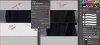
Larry (ie, ALB) is right that a masking job like this is almost trivial and can be done in seconds, if necessary.
As with all things in Photoshop, there are always multiple ways to accomplish the same thing. Since you prefer an approach that doesn't use detailed masking of sections of the image, here's what I would suggest:
1. When I'm confronted with a problem that mostly is in the darker tones, the first thing I do is put a temporary levels adjustment layer above the image to brighten everything up. I then can make my adjustments more accurately and then turn off that layer when I'm done. I did this for your image.
2. When I'm adjusting to try to match a particular target, I want to be able to do a side-by-side comparison to the target image and turn all my adjustments on and off at once, so I typically will group them, as shown in the layer stack screen grab, below.
3. Although my technique doesn't require detailed masking of particular sections of a starting image, for the purposes of this demo, the easiest way to restrict my adjustments to your upper image (ie, the "original") and continue your top-bottom comparison was to use a simple rectangular layer mask that selected only your upper image for adjustment.
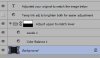
4. The main adjustment I used was a simple "Color Balance" adjustment layer. Here are the parameters I used. Don't forget to turn on "Preserve luminosity" and target only the midtones:
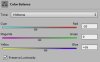
5. Even with "Preserve luminosity" turned on, there is a change in brightness when the Color Balance layer is used, so I put a simple "Levels" adjustment layer on top of the "Color Balance" layer to offset this change in brightness.
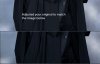
6. This image shows the results of these adjustments with my overall brightening layer turned on. As you can see, my adjustments are quite close to your target image.
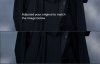
7. Finally, this image shows the results without my overall brightening layer turned on. With a bit more care in tweaking the Color Balance parameters, particularly, separate tweaks for the shadows and highlights, one could even more accurately reproduce the effect seen.
HTH,
Tom
PS - BTW, unfortunately, "Color Balance" is one of the few adjustment layers that doesn't allow one to save the parameters used as a preset. If it did, I would have made a preset and sent it to you. If you need to make this change to dozens of images (or more), then it may be worth your while to use a different type of adjustment layer (eg, Chanel Mixer or Selective Color) that can perform essentially the same function, but which also allows one to save a set parameters as a preset.
PPS - If you are viewing this thread on a laptop or using a desktop monitor that doesn't have a wide (vertical) viewing angle, you likely won't see much of a change between the last two images. When I temporarily brighten an image to make an adjustment easier, I don't want to go overboard with the brightening and possibly be misled -- I use the minimum that helps me see the darker tones, not more.