What's new
Photoshop Gurus Forum

Welcome to Photoshop Gurus forum. Register a free account today to become a member! It's completely free. Once signed in, you'll enjoy an ad-free experience and be able to participate on this site by adding your own topics and posts, as well as connect with other members through your own private inbox!

What has been done to the After?


BonJK

Member
Messages
6
Likes
0
I am trying to learn what has been done to the top photo to give the look of the bottom photo.

Black suit looks navy, but not too much of the original photo is different. White seems brighter and blue seems bluer.

Compare.jpg

I tried using colour match in photoshop but it didn't look the same.

Need help from pros please.
 
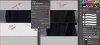
I'm pretty sure that was done with a Hue/Saturation Adjustment Layer set to Colorize. Try that and see if that won't work for you.
Compare.JPG
 
Last edited:
I can't be that because that makes the whole photo purple including parts which are not black. The full size after photo really only affects the black parts, the white shirt colour becomes brighter and the red tie remains similar. The grey background is a bit yellowy in the after.

That's why I think a preset/filter was used.
 
Huh? You mask the part you want to work on, not the whole thing. I simply masked the black part, did a Ctrl J and then made a new file. for demo purposes. I made the adjustment to the black only. There are all kinds of ways to adjust it. I simply set my Window so that you were seeing both images at the same time.
I can't be that because that makes the whole photo purple including parts which are not black. The full size after photo really only affects the black parts, the white shirt colour becomes brighter and the red tie remains similar. The grey background is a bit yellowy in the after.

That's why I think a preset/filter was used.
 
lol, my mistake.
I am totally new to photoshop, thanks.

I doubt masking was used as it takes too much time.
 
Because in the compare picture I posted the background is slighly bluer in the after photo. That's why I think a preset filter or some other non masking adjustment was used.
 
Masking is very fast if you effectively use one of Photoshop's many methods. I suggest you study some more before you come into a forum of experienced users, ask for help, and then second guess the advice. There are many simple ways to do this, I only suggested one of many. I am sure some of my fellow gurus will come along and help you further.
lol, my mistake.
I am totally new to photoshop, thanks.

I doubt masking was used as it takes too much time.
 
Larry (ie, ALB) is right that a masking job like this is almost trivial and can be done in seconds, if necessary.

As with all things in Photoshop, there are always multiple ways to accomplish the same thing. Since you prefer an approach that doesn't use detailed masking of sections of the image, here's what I would suggest:

1. When I'm confronted with a problem that mostly is in the darker tones, the first thing I do is put a temporary levels adjustment layer above the image to brighten everything up. I then can make my adjustments more accurately and then turn off that layer when I'm done. I did this for your image.

2. When I'm adjusting to try to match a particular target, I want to be able to do a side-by-side comparison to the target image and turn all my adjustments on and off at once, so I typically will group them, as shown in the layer stack screen grab, below.

3. Although my technique doesn't require detailed masking of particular sections of a starting image, for the purposes of this demo, the easiest way to restrict my adjustments to your upper image (ie, the "original") and continue your top-bottom comparison was to use a simple rectangular layer mask that selected only your upper image for adjustment.
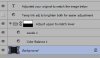
layers_stack.jpg

4. The main adjustment I used was a simple "Color Balance" adjustment layer. Here are the parameters I used. Don't forget to turn on "Preserve luminosity" and target only the midtones:
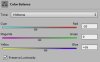
color_balance_parameters.jpg

5. Even with "Preserve luminosity" turned on, there is a change in brightness when the Color Balance layer is used, so I put a simple "Levels" adjustment layer on top of the "Color Balance" layer to offset this change in brightness.

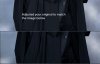
6. This image shows the results of these adjustments with my overall brightening layer turned on. As you can see, my adjustments are quite close to your target image.
Compare-tjm01-acr0-ps01-01_adjusted-temp_brightened.jpg

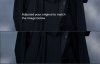
7. Finally, this image shows the results without my overall brightening layer turned on. With a bit more care in tweaking the Color Balance parameters, particularly, separate tweaks for the shadows and highlights, one could even more accurately reproduce the effect seen.
Compare-tjm01-acr0-ps01-01c_adjusted.jpg

HTH,

Tom


PS - BTW, unfortunately, "Color Balance" is one of the few adjustment layers that doesn't allow one to save the parameters used as a preset. If it did, I would have made a preset and sent it to you. If you need to make this change to dozens of images (or more), then it may be worth your while to use a different type of adjustment layer (eg, Chanel Mixer or Selective Color) that can perform essentially the same function, but which also allows one to save a set parameters as a preset.

PPS - If you are viewing this thread on a laptop or using a desktop monitor that doesn't have a wide (vertical) viewing angle, you likely won't see much of a change between the last two images. When I temporarily brighten an image to make an adjustment easier, I don't want to go overboard with the brightening and possibly be misled -- I use the minimum that helps me see the darker tones, not more.

 
For someone 'so new to photoshop' i find some of your replies very well clued up mate, to quote your words
I am totally new to photoshop, thanks.
:question:
 
Thanks Tom,

I applied the colour balance settings and it looks almost like the after picture, the original after has a bit more yellow and has slightly darker black, also the contrast between the who is more noticeable.

But they look very similar.

I assume adjusting contrast will help a bit with that, to make the shadows a little darker as well.
 
You're welcome, Bon.

Yup, there are small differences. I made no attempt to get everything perfect in my little freebie demo / tutorial, but I figured that it should get you close and point you in a good direction.

As with all things in PS, there is no substitute for a massive amount of hands-on experience, so, when you run into some minor tweak that needs to be made (eg, a bit darker shadows, a slight yellow cast, etc.), you'll know exactly what tool to reach for.

If you run into any more stumbling blocks don't hesitate to ask.

Cheers,

Tom M
 
re: "...I assume adjusting contrast will help a bit with that, to make the shadows a little darker as well...."

I presume you noticed that I put a levels adjustment layer above the Color Balance adjustment layer. In my demo, adjusting the parameters in Levels reduced many of the problems you mentioned to almost insignificant levels, and with a bit more care, one could do even better than that.

T
 
Thanks Tom, using adjusting colour balance produced much better result that the colour match tool in photoshop.

I keep that in mind next time. :wink:
 

Back
Top