
Photoshop Gurus Forum
Welcome to Photoshop Gurus forum. Register a free account today to become a member! It's completely free. Once signed in, you'll enjoy an ad-free experience and be able to participate on this site by adding your own topics and posts, as well as connect with other members through your own private inbox!
You are using an out of date browser. It may not display this or other websites correctly.
You should upgrade or use an alternative browser.
You should upgrade or use an alternative browser.
Is it possible to paste a selection along a line?
- Thread starter phtshp
- Start date


SPWA
Power User
- Messages
- 445
- Likes
- 298
Just curious as to why you want to do it that way? If the desired outcome is a large rectangle with a gradient, you could just draw a large rectangle & apply a gradient to it. The benefit to that is if you want to move it, you just have 1 shape instead of a row of smaller ones.
Just clarify that having all the smaller shapes in a line is essential or not.
Just clarify that having all the smaller shapes in a line is essential or not.

Trevor Dennis
Well-Known Member
- Messages
- 153
- Likes
- 99
You could use Free Transform Step & Repeat I suppose, which would streamline the process, but not by much, and you'd still have a bunch of layers to flatten.
Hey, how about using the Array function in Trevor Morris's Dmonzon Tools scrip? That's a really useful add on panel - especially the array feature.
http://dmonzon.com/freebies/12-photoshop-tools-cs6/
Works in CC as well.
[EDIT] It looks like this. Well it does on my system. I just have it as a fly out on the little strip of panels that I have on my main monitor
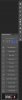
Hey, how about using the Array function in Trevor Morris's Dmonzon Tools scrip? That's a really useful add on panel - especially the array feature.
http://dmonzon.com/freebies/12-photoshop-tools-cs6/
Works in CC as well.
[EDIT] It looks like this. Well it does on my system. I just have it as a fly out on the little strip of panels that I have on my main monitor
Last edited:
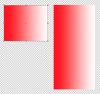
Just curious as to why you want to do it that way? If the desired outcome is a large rectangle with a gradient, you could just draw a large rectangle & apply a gradient to it. The benefit to that is if you want to move it, you just have 1 shape instead of a row of smaller ones.
Just clarify that having all the smaller shapes in a line is essential or not.
Here's another picture to illustrate how I would use it. Using a horizontal slither of a piece of the jar that doesn't have any label on it, I would like to be able to paste down in order to remove the label.
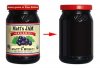
No, you can't "paste it down" but you can transform it after it's been copied and pasted.
Use the transform function (command + T or EDIT > FREE TRANSFORM), grab the lower handle and drag.
Yes, that will do it. Thank you.
Trevor Dennis
Well-Known Member
- Messages
- 153
- Likes
- 99
IanSam, I thought about this later and wondered why on earth I was over complicating it. Free Transform is the obvious way to do it.

- Messages
- 24,325
- Likes
- 13,734
Use your Rectangular Marquis Tool to make a selection across the jar.
Command + J to duplicate to it's own layer.
Select the sliver layer, command + T to transform.
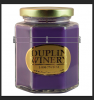
Drag the lower handle towards the bottom until the label is covered.
As you can see, you will have to do some blending now.
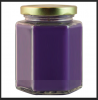
Command + J to duplicate to it's own layer.
Select the sliver layer, command + T to transform.
Drag the lower handle towards the bottom until the label is covered.
As you can see, you will have to do some blending now.
Use your Rectangular Marquis Tool to make a selection across the jar.
Command + J to duplicate to it's own layer.
Select the sliver layer, command + T to transform.
View attachment 37400
Drag the lower handle towards the bottom until the label is covered.
As you can see, you will have to do some blending now.
View attachment 37401
Thanks. That's what I needed.

boohbah
Active Member
- Messages
- 30
- Likes
- 10
excellent tip, i didnt know this and it will be handy for future.Use your Rectangular Marquis Tool to make a selection across the jar.
Command + J to duplicate to it's own layer.
Select the sliver layer, command + T to transform.
View attachment 37400
Drag the lower handle towards the bottom until the label is covered.
As you can see, you will have to do some blending now.
View attachment 37401