What's new
Photoshop Gurus Forum

Welcome to Photoshop Gurus forum. Register a free account today to become a member! It's completely free. Once signed in, you'll enjoy an ad-free experience and be able to participate on this site by adding your own topics and posts, as well as connect with other members through your own private inbox!

I need help with one tutorial


Did you use the "gradient" tool or the "gradient map" tool. You almost certainly want the latter.

Tom M

PS - Please post the starting image that you used, as well as the result you obtained. Speaking in the abstract about such matters is almost impossible.
 
Did you use the "gradient" tool or the "gradient map" tool. You almost certainly want the latter.Tom MPS - Please post the starting image that you used, as well as the result you obtained. Speaking in the abstract about such matters is almost impossible.
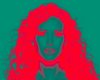
Thanks for the replySorry, it's Gradient Map!And here's what the the final result would look like...ththth.jpg
 
Last edited:
For my own interests, I would like to see how this effect is done. I've been experimenting without success.
 
Unfortunately, I just don't have time to work on it at the moment, but it looks like a simple two color gradient map with darks mapped to red and lights mapped to cyan, perhaps with some further diddling to control the overall tonal contrast, and the change in saturation vs luminosity so that enough hints of the original peeks through.

T
 
This was so easy and fun, I couldn't resist.

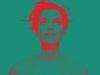
I started with this:
test1.jpg

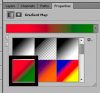
I added a gradient map adjustment layer and selected one of the stock gradients (in CS6):

2013-11-04_133049-starting_stock_gradient_map.jpg

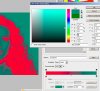
Went into the gradient map editor and changed the greens to cyan:
2013-11-04_133242-gradient_map_editor.jpg

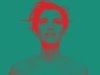
And came out with this:
test1-acr0-ps02a-8bpc-sRGB-01.jpg

For comparison, here's the goal image:
goal1-ththth.jpg

By tweaking the gradient map editor and/or inserting other adjustment layers between the original and the "gradient map" adjustment layer, one can tweak the final result to your heart's content.


HTH,

T
 
Tom, I made it that far..........

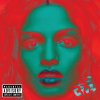
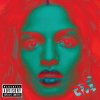
This is the target image that I cant seem to figure out:

MIAcover500_.jpg

The OP wants this effect, in post #4, they were showing you what their result was and it was different than the target image.
 
Last edited:
It looks pretty close to me and that fairly small tweaks should take care of the rest. Exactly what aspect that is not exactly matching up are u unhappy with? The grain? The exact distribution of the shading? The lips? Etc.?

T
 
All of the above. But for simplicities sake, lets go with the grain and the lips.
 
OK. I understand. However, those aspects of the image are so dependent on the exact properties of the starting image (including the ISO used, digital or film capture, and especially the lighting) that I wouldn't proceed until the OP posts the image he started with.
 
I would have to agree Tom. I was hoping, for myself, to get a little closer to the effect than I did.

The problem is that the OP is using Album/CD coverart from M.I.A. as the target/example image.
 
OK, if we can't get the original of the image posted by the OP, how 'bout we start with our own image. IMHO, without a common starting point, we will all be working on different things, there will be no good method of comparison of the methods, etc.etc.

For example, I would bet that a 20 degree change in the up-down angle of the key light will make enough differences in the shadowing to account for many of the difference seen (keeping the PP method fixed).

T
 
1) To check if my comment that direction and quality of the lighting plays an important role in the difference between the starting image I used and the one used for the OP's image, one can more or less invert these two gradient mapped images to get an idea of what the OP's original looked like. Basically, one just inverts the gradient mapped version and then applies a BW conversion to it as shown in the screen grab immediately below:
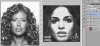
2013-11-05_022336-screen_shot-convert_grad_map_back_to_BW-2.jpg

It's immediately apparent that the image I started from has much more diffuse, frontal lighting, a broader tonal range, etc., whereas the image they started from has most of the light coming from directly in front of, and well above the model. This leads to deep shadows in the eye sockets, under the nose, under the lips, etc. When this is converted to color, it leads to more red in these areas.
----------

2) Another way to see the effect of lighting is to compare the effect of the same gradient map on two images, one with harsh light coming from above, and the other using a fill light to fill in the shadow areas:
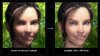
2013-11-05_030447-overhead_vs_fill_flash-acr-ps02b_8bpc_sRGB-00_orig.jpg
courtesy: http://www.cambridgeincolour.com/tutorials/portrait-fill-light.htm
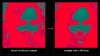
2013-11-05_030447-overhead_vs_fill_flash-acr-ps02b_8bpc_sRGB-01_gradient_map.jpg

Again, as you can see the total area in red has increased because of the increase in shadow areas.
------------

3) When you are trying to match someone else's work, another good parameter to adjust is using a B&W conversion adjustment layer before the gradient map is applied. This forces the gradient map algorithm to use your B&W conversion, not its own internal B&W conversion. Below is an animated GIF I put together where each frame is one of the standard B&W conversion options (eg, default, blue, high contrast blue, red, IR, lighter, maximum_black, maximum_white, etc.):

test1-acr0-ps03b_compare_different_BW_conversions-8bpc-sRGB_for_GIF.gif
--------------

4) As I said earlier, the grain / noise structure in the cited image is so dependent on the ISO used, digital vs film capture, what sensor or film was used, the degree of magnification, etc.. trying to simulate it accurately is a bit of a crap-shoot, but here's a quick attempt. I also toned down the reds in this version to better match the OP's goal.
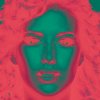
test1-acr0-ps03c2_compare_different_BW_conversions-8bpc-sRGB_plus_noise_cropped-2x-01.jpg
Obviously, if one had the time or interest one could do even better than this, especially in regard to actually attempting to simulate the lighting in the original using dodging and burning on my original, before beginning any other processing steps.
--------------

5) Finally, my guess is that the blue lips seen in post #2 in this thread probably were done by some fairly brute force method such as painting some blue over them, or using a hue/sat adjustment layer masked to operate just on them. I think it would take too much diddling around to successfully introduce a third color (blue) into the existing cyan/red gradient map. I was getting tired of working on this image, so I didn't even bother to play with this aspect.

Cheers,

Tom

 

Back
Top