What's new
Photoshop Gurus Forum

Welcome to Photoshop Gurus forum. Register a free account today to become a member! It's completely free. Once signed in, you'll enjoy an ad-free experience and be able to participate on this site by adding your own topics and posts, as well as connect with other members through your own private inbox!

Specific Black and White Repairs


Landlocation

Well-Known Member
Premium Member
Messages
184
Likes
23
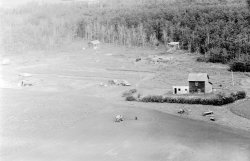
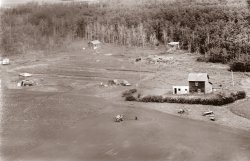
Looking to even the lightness and darkness to be able to print a 11x14 image and make the image as sharp as possible.

Map 316-41-S1-0035.jpg
 
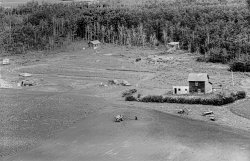
Here is a larger file of the same image, do you think this might make a difference? Just noticed the file is too large , will not upload. 23mg
 
Hi @Landlocation location
Here is a link to file size limitations: PS Guru Image Attachment Limitations
Sizes above that can be done by putting them on a file sharing site and sharing the link to the image.

As far as noise, note that @Babine has posted an image as well and may have lower noise.

Noise may be inherent in the image, brought in by the scanner, or in post processing (e.g. over sharpening). Post processing has probably added some yet that sometimes is the tradeoff to have it look a bit sharper.

I would be surprised if the total pixel size of the image is the issue yet certainly could be depending on how your originally downsized the image. The needed resolution has to do with the need for you final product. For just a reasonably sized print viewed at normal viewing distances, you might have plenty. However, if someone is going to take a magnifying glass to the image to eek out details then more might be needed. So you would need to specify what you need for the final product. General guideline is that 300 ppi is quite good for viewing distance of 10 to 12 inches. Large prints are typically viewed at a distance about the same as the diagonal of the print so may get by with less resolution (unless someone is looking really close).

As far as the initial image being limited, here are some thoughts.
1) You shared the image as JPEG (8 bit depth) and the very light areas (left side) has quite a narrow range of gray levels. 8 bit full range of gray levels is 256 yet the left side is only utilizing about 30. So in post processing when that is spread out, you have what is called posterization. If you image on the print your are scanning has more detailed embedded, the scanning at 16 bit and sharing that in 16 bit mode PNG or TIFF could help. Prints in general are limited in the amount of unique tone they can carry with the medium so that is print specific.

2) I don't know about your printer. For scanning prints, most scanners that can do quite well yet it is hard to compare unless you scan with a different scanner to see if you can get better

3) I don't know if these were original digital images or scanned negatives. If a negative, then high quality scanners will get more detail with less noise.

4) It is not just the resolution of the image yet the quality of the original shot e.g. was this a stable shot with not movement of the camera and shake reduction built into the camera from vibrations? The quality of the original equipment and original shot set the baseline of how good an image you will get with any post processing (AI software helps yet it is just faking it on what it thinks is noise of needs to be sharp so you mileage may vary)

5) Some people are better than others in getting a good result through post processing. So checking the results of other forum members is important. Some images are at the limit of my skills and this one is one of them.

Hope this added information helps
John Wheeler
 
Hi @Landlocation -

I can't go as deep as @thebestcpu since my head starts to really hurt. What he writes hopefully provides some insight.
What I would add, though, is that the grain inherent in the image may go back all the way to the film used and the negative produced. Scanning these images at higher resolutions can only increases the grain, not reduce it. Your original upload, from what I can see, is already grainy.

Scanning at 300 ppi (not dpi) is generally thought of as the standard. A tiff file would be better than a jpg since it's a lossless file. For instance, if you scan as a jpg, the more you handle the file, ie opening as a jpg, and resaving as a jpg, you start to lose information/detail. The trade off is that tiff files are generally huge and certainly can't be uploaded here. Bottom line, I believe, is input = output. If you start with a grainy image, there is only so much you can compensate for it. There is software to be used - but not without compromise. You can't add detail that isn't there.

The other factor that I had recently read about, is the native resolution of the printer you use. In general, most printers have a native resolution of 300 dpi (dots per inch). So no matter high a resolution of the photo you're sending to your printer, it will reformat it so it prints at 300 dpi. DPI may equal PPI, but even if you send a 600 ppi file to the printer, it will still only print at 300 dpi. Which also depends on the quality and size of your printer.

Now you know why my head starts to hurt. But it all can translate into the old acronym GIGO - garbage in, garbage out. I don't like calling data garbage, especially the images we work so hard to produce. So better to give it the formula WYI = WYO, or What You Input equals What You Output. So, take a look at your film negative if you can and see if you can determine the quality. Access to a higher quality scanner might be part of the solution.

Just one more addition - what John said about viewing distance is also correct as explained in this article:


In the last print production position I freelanced, I had to produce 20 foot wide convention panels that included images. We handed the printer files that had the images at 50% of size at 150 ppi. So the final images ended up as 75 dpi. As someone who was used to seeing high quality/high resolution images in catalogs and direct mail, I thought that was an error. But as was explained to me, holding a catalog in your hand is not the same as seeing a convention panel from 12 feet away.

I hope I haven't gone on too long...I certainly did at the production desk... :cheesygrin:

- Jeff
 
So having provided all that advice, I decided to play with the image a bit.
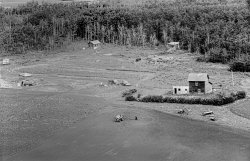
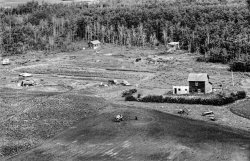
I came up with 2 versions. Most importantly I raised the luminance of the image which "softened" the image and gave the appearance or reducing the grain. This of course brings down the detail a bit.
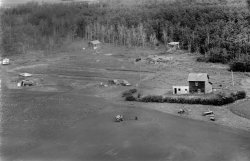
Then I created a grayscale jpg and a duotone. The duotone is RGB but I was trying to camouflage the grain and have it appear as a vintage photo - which it is.
Maybe this is an opportunity to dig into this a bit further.
- Jeff

Grayscale

landscape edited 2.jpg

Duotone
landscape edited 2 duotone.jpg
 

Back
Top