What's new
Photoshop Gurus Forum

Welcome to Photoshop Gurus forum. Register a free account today to become a member! It's completely free. Once signed in, you'll enjoy an ad-free experience and be able to participate on this site by adding your own topics and posts, as well as connect with other members through your own private inbox!

How do i get this effect?


00jwhittle

Active Member
Messages
26
Likes
0
hi all,

i am new to photoshop and was wondering if anyone could help me with somthing.

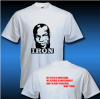
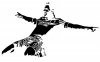
i am trying to get this effect. i have pictures of faces and people which i want to turn into a black\shaddow outline.

i have some examples but it wont let me post a link or a picture because i am new :(

how do i do this in photoshop?
 
exaple.png

:) finally figured out how todo it. so i am trying to get this effect. i dont really want to use the pen tool to drawn around an image. i was hoping their would be a simple way, maybe mess around with the contrast or somthing simlar?

thanks
 
The selection method will greatly depend on the photo you are working with.
 
Last edited:
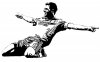
ahh ok, that makes it alot more difficult. if i just show you a picture that i will be working with would you be able to tell me the mehtod? as this picture will be very simlar to other pictures i will be doing the same effect too. tumblr_l7mhc8JPNb1qawt1wo1_500.jpg
 
Try a Thresholds
On the bottom of the Layers pallet is a half white half black circle.
Click on that and click on Threshold.

Is that what you're looking for?

If that's to strong there are other methods.
 
Try a Thresholds
On the bottom of the Layers pallet is a half white half black circle.
Click on that and click on Threshold.

Is that what you're looking for?

If that's to strong there are other methods.

thank you. thats a really good start. but i think it s a little too strong. what other methods do you know of?

also whats the best way to remove the background so i just have the player and nothing else. i want it to be fairly neat.

thanks again
 
also whats the best way to remove the background so i just have the player and nothing else. i want it to be fairly neat.

thanks again

Like i said, get familiar with the pen tool.... You have two options with a picture like this. Use the Pen Tool or use the Magnetic Lasso Tool.
 
Maybe I misunderstood the question.
Are you trying to remove the background or get a harsh B&W effect?

To get a more subtle effect desaturated the image, create a Threshold adjustment layer, then lower the opacity on that layer.
 
Maybe I misunderstood the question.
Are you trying to remove the background or get a harsh B&W effect?

To get a more subtle effect desaturated the image, create a Threshold adjustment layer, then lower the opacity on that layer.

yeh sorry i was looking to get a harsh B&W effect but i went off topic and started asking about the background. ill save that for another thread.

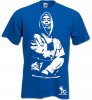
i want it just like that example i showed on the first page. When i try the threshold it's sort of pixelated. i cant really have that as this is going to be put on a t-shirt so its needs to be solid black. if you understand what i mean.

sorry if you dont understand :s

ill post another example tupac Royal Blue.jpg
 
You could use Alpha channels to achieve that if im not mistaken. You would have to also use a path and copy it to a channel and make some adjustments.. Im not sure what all steps would be involved but i know you can do it that way...
 
Could you not just use color range and fill a broad range of colors with the same solid color fill to get that effect after you cut out object you want?
 
Okay...let's try this way.

step1.jpg
1. Separate the object from the background with lasso tool or pen tool

step2.jpg
2. Use Filter>Sketch>Stamp ... adjust the light/dark balance and smoothness until it feels right to you

step3.jpg
3. In this step, we fix the jagged line from the stamp effect by painting it with vector or just use the pixel from the pen tool.(pen tool is great) Close all outline

step4.jpg
4. Next, select area outside the line and then invert the selection (Ctrl + Shift + I) then fill it with any color.

step5.jpg
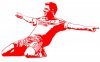
5. Back to the vector layer (picture number 3) Now use the color range to select all of the area with color and than back to the fill layer (picture number 4) and press delete. Done. Next. Inverse the color (Ctrl + I) or change it with colorize

Here You go

done.jpg

P.S : i'm sorry for attaching a lot picture here. I forgot how to make it simple.
 
How ya like them apples!! That looks exactly like what your trying to do. Thanks for the mini tut sicsid!! Also notice he said Pen Tool!! Get familiar with it...
 

Back
Top