- Messages
- 24,103
- Likes
- 13,706
Welcome to Photoshop Gurus forum. Register a free account today to become a member! It's completely free. Once signed in, you'll enjoy an ad-free experience and be able to participate on this site by adding your own topics and posts, as well as connect with other members through your own private inbox!


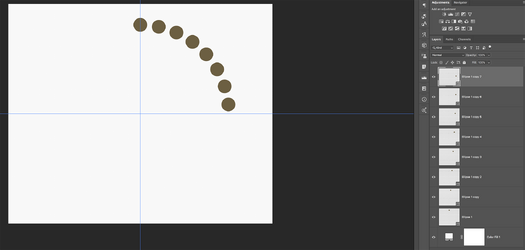
Should be a you problem. Note in the video a 1:19 I switch to the Move Tool!Is this a version "thing" or a "me problem"?

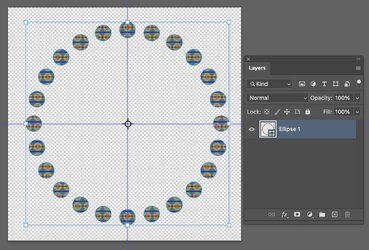
I am using the Ellipse Tool (shape tool?). Its late now but I will try it tomorrow. So do I need to use the elliptical marquee tool?
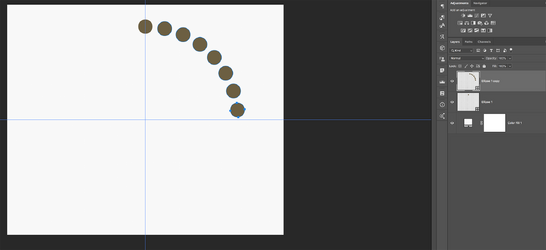
View attachment 152572
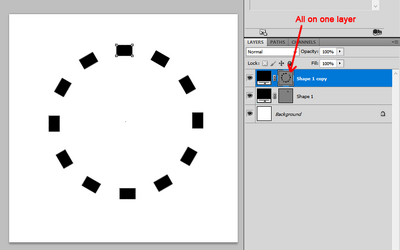
No, only if you're not using the Move ToolIf you apply the command Ctrl+Shft+Alt+T to a vector shape layer, it will rotate all the shapes on one layer, rather than multiple layers.


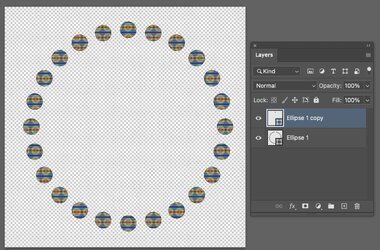
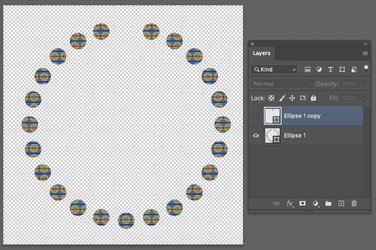
Try starting with a new document and make sure you use the Move ToolI did just that but unfortunately when I try again, it still doesn't give me a new layer for each circle
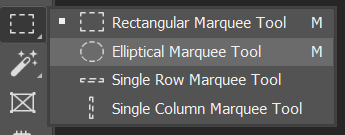
The Marquee Tool is not a "Shape Tool", it does not create a vector shape. You can use the Marquee Tool for your shapes, but you give up editability.I am using the Ellipse Tool (shape tool?). Its late now but I will try it tomorrow. So do I need to use the elliptical marquee tool?

No, only if you're not using the Move Tool
If the shape is created with the Marquee Tool, it will rotate with individual layers without the Move Tool.
I'm guessing that I should stop replying as well since it's obvious to me that Ps functions are not staying consistent with "step and repeat" across the versions.Probably, the time has come for me to be very selective when replying to "how to" questions because my version of PS is too old. I may inadvertently be adding confusion rather than helping.
Should be a you problem. Note in the video a 1:19 I switch to the Move Tool!
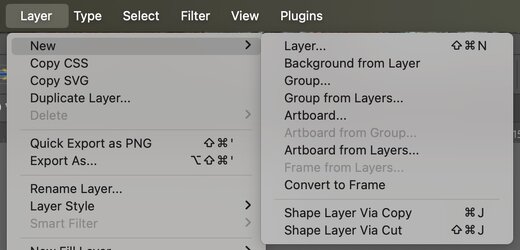
After you make the first ellipse to be copied and moved (not the stroked outline), then copy the ellipse with Cmd/Cntrl + J, switch to the MOVE TOOL, then enter free transform, then move the center pivot and adjust angle and hit OK/enter, then hit Cntrl + Alt + Shift + T and it should place them on separate layers.
If you don't switch to the Move Tool, the step and repeat process will place them all on one layer.
This does not sound correct. The Move Tool would not be "active" or "actively showing" ONLY during the free transform, but once you hit OK/Enter, the Move Tool returns.After I do that, the move tool is not activated


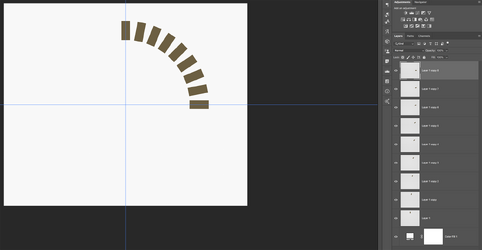
That is very cool thank you, but I need the circles to be smart objects where I can place an imageAnother idea. With the following script, you can choose the radius of the main circle, the number of small circles (21 in your example) and the radius of small circles.
To create exactly the same example, you may use following values :
1 - Main circle radius : 315
2 - Number of circles : 21
3 - Small circles values : 43
The script.
See this post:That is very cool thank you, but I need the circles to be smart objects where I can place an image
These are not Smart Objects containing vector shapes. Yes, they are just standard shape layers and this is how the newer Ps versions display shapes.in the layers panel of your screenshot above, are these Smart Objects with a vector shape inside it? Or is this how newer versions of PS display vector shape layers?
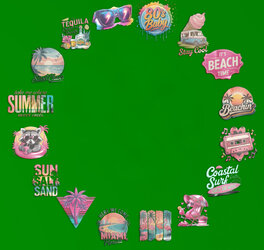
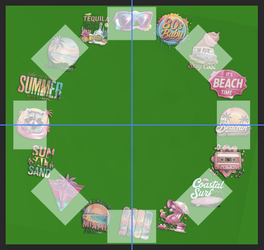
Right ... so this is what I am trying to do, again being able to change the small images at any given time. The images are on a transparent background (green only for viewing purposes) and for that I need a "smart object layer", right? The layer where I can click bottom right and a new window opens, I put the image in it and press X to close ... and its done?See this post:
These are not Smart Objects containing vector shapes. Yes, they are just standard shape layers and this is how the newer Ps versions display shapes.in the layers panel of your screenshot above, are these Smart Objects with a vector shape inside it? Or is this how newer versions of PS display vector shape layers?
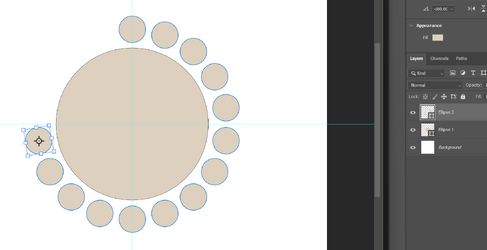
In the screenshot below, Ellipse 1 layer, is a shape layer with a shape layer icon on the lower right hand corner of the thumbnail.
Ellipse 2 Smart Object Layer, is a Smart Object layer (presently containing but not limited to a shape) with a Smart Object...

This, based on the actual size variations and proximity of the objects/images/logos appearing in your sample image, is a much different technique than what your original topic was about. This would be more about arranging images in a circle than using smart object layers. Each smart object layer would have to be custom fit with a specific boundary to accommodate the varied images. Trying to use Smart Objects is a waste of time! This would not be how I would go about creating this type of circular graphic. This would be much more simple by arranging the images around a circle with basic Ps layers and groups.Right ... so this is what I am trying to do, again being able to change the small images at any given time.