What's new
Photoshop Gurus Forum

Welcome to Photoshop Gurus forum. Register a free account today to become a member! It's completely free. Once signed in, you'll enjoy an ad-free experience and be able to participate on this site by adding your own topics and posts, as well as connect with other members through your own private inbox!

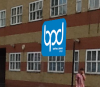
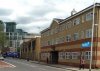
Can some Help me with putting this logo on the building


SHarrison

Well-Known Member
Messages
60
Likes
0
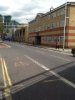
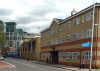
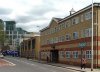
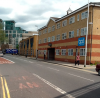
Hi All, I have this building which is owned by the company i currently work for, at the moment they havent got a logo on the side of the building so they have asked to me photoshop one on, our designer left the company last week so im in the dark on this one, iv attached an image with my Attempt and you can see it was a bit of a failure!, my attempt is the third image Would someone please correct my example and also take the people out of the picture,MyAttempt.jpgLondonBuilding.jpgLogo.png
 
Last edited:
anyhow, for starters, the pictures you provided are just thumbnails... there's nothing that can be done with them.

you were close with your first attempt. try lowering the layer opacity on the logo so it doesn't seem so saturated on the brick wall. or try a different blending mode in the layers pallet.

the part of the wall that you're pasting it onto is in the shadows, so the logo looks like it's just standing out. try using the levels command to lower the brightness of the logo. (image/adjustments/levels) and pull the sliders until you see something you like.
 
Sorry the new files are now attached
 

Attachments

  • Photo(1).JPG
    Photo(1).JPG
    216.8 KB · Views: 23
  • FirstAttempt.png
    FirstAttempt.png
    173.1 KB · Views: 52
  • BPDLogoBlueBG.png
    BPDLogoBlueBG.png
    18.7 KB · Views: 47
Just removed the people and the van down the road, cropped it to frame it a bit better - placed logo on wall.
I lowered the opacity of the logo as it was to bright.

View attachment 17560
 
I don't see why you are asking for someone to do this when you are almost there. It's just a matter of transforming the logo to conform to the same angle as the building. For that you can use distort (Edit-Transform-Distort). Lowering the layer opacity will soften the logo and allow the brick to show a little through a little.
 

Attachments

  • Photo(1).JPG
    Photo(1).JPG
    35.4 KB · Views: 47
There is a good tool for things like that: Filter->Vanishing Point

Logo.jpg

To make it look natural on the wall I used "sandwich" technique:
Duplicate the background layer, move it over the logo layer, Desaturate, and place it in the Clipping group with the logo layer. Change its Blend Mode to something like Hard Light and tweak the Opacity.
 
1) About blending modes. Street plates are usually made of plastic. So there's no point using blending modes. It's better to ajust white balance and exposure with ajustment layers.

2) About Vanishing Point. It's an amazing tool. Really. I've tried it today and was amazed.
It makes perfect perspective and measuring.

VP1.png

The height of that guy is presumably 1,7. So the current height of the plate is about one meter.

BUT... The main problem of VP is jagged edges. VP interpolates only the content. There are some workarounds (manual masking, retouching alpha channel), but this bug is very annoying.

And finally, my vision of how the plate should look.

VP2.png
 
raikkonen, man, there is MUCH more to VP!

I use it many a time.

It's irreplaceable for all sorts of retouching.

You can place the objects realistically on the various surfaces, drop realistic shadows which conform to the main image. PS calculates their distortion right.

Also, there is a "Return 3D Layer to Photoshop" option in PV, which lets you build a 3D scene from a 2D image and later place 3D objects in a 2D image seamlessly and realistically, even with true shadows and true light sources!

It sure is amazing! And it sure is worth getting accustomed to!

P.S.

BUT... The main problem of VP is jagged edges. VP interpolates only the content. There are some workarounds (manual masking, retouching alpha channel), but this bug is very annoying.

Not really sure what you mean, I haven't noticed anything like that. Maybe an example could clarify it a bit ...
 
Last edited:
Hmmmm. I masked a logo with a vector mask, rasterized it, applied the mask to the layer.

The result.

VP_vectorpath.png

But if a logo is masked not so precisely then VP doesnt make jagged edges. Mysterious.
The better mask - the worse result.
 
I used Refine Mask to make a clear, smooth mask:lol:

Although I don't like the Refine Mask. When it first appeared in PS, I thought it would be lossless, but it proved to be otherwise:frown: "Disappointed" was not the right word for it!:lol:
 

Back
Top