What's new
Photoshop Gurus Forum

Welcome to Photoshop Gurus forum. Register a free account today to become a member! It's completely free. Once signed in, you'll enjoy an ad-free experience and be able to participate on this site by adding your own topics and posts, as well as connect with other members through your own private inbox!

Change color and other things ONLY for added person..


Windows7

Power User
Messages
295
Likes
2
Hi,

I've got a new problem and that is that i cutted out and added a person to another image and the colors and stuff don't fit of each other like for example:i have to sharpen the added person,change his colors,ect.. .

Now you can see it clearly that it is added and i want to disable that?

How can i do it the best way to get the best result?

If i want to change the contrast of the added person the whole picture changes and that is not what i want though... :frown::frown::frown:
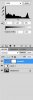
 
You need to have the two images (background and added person) on two different layers in order to manipulate them separately. Post the image you're working on for specifics.
 
How are you changing the contrast? Through the "Image" menu or by creating an adjustment layer within the layer's palette?

Going through the "Image" menu will allow you to change just one layer, but the effects are permanent to that layer.

An adjustment layer will by default affect all layers below it. You can change that by alt+clicking between the adjustment layer and the layer below it, or by putting them in a group together and changing the group's blending mode to "Normal". Lots of info there. Let me know if any of that helps.
 
How are you changing the contrast? Through the "Image" menu or by creating an adjustment layer within the layer's palette?

Going through the "Image" menu will allow you to change just one layer, but the effects are permanent to that layer.

An adjustment layer will by default affect all layers below it. You can change that by alt+clicking between the adjustment layer and the layer below it, or by putting them in a group together and changing the group's blending mode to "Normal". Lots of info there. Let me know if any of that helps.

Hey man thank you very much for your WILLING to help because not everybody does it.

But i tried via to make a group and put the added person layer and stuff in the group and then i tick on the group and i change color and still the color changes of the WHOLE PHOTO!!!!I'm really going crazy!!!!!What do i wrong!!!!?????

And the same with adjustment layer.. i make an adjustment layer only for the added shape and change color and still the entire photo changes!!!!!????:s:s:s
 
if they are on separate layers... simply click the eye-ball off on one layer, it "cannot" be affected...
depending on the tool you are using you "can" affect all layers...

group layers at the end, to clean-up/streamline the file, not during...

to solve this issue in the future, balance images before you begin to combine them...
always easier to work with neutral images... and far more pleasant to view...
look at them side-by-side... see if the lighting/perspective is going to match... before you waste time masking...
two mis-matched images will never composite correctly...
well... they will composite, but, the final result will be poor...
 
if they are on separate layers... simply click the eye-ball off on one layer, it "cannot" be affected...
depending on the tool you are using you "can" affect all layers...

group layers at the end, to clean-up/streamline the file, not during...

to solve this issue in the future, balance images before you begin to combine them...
always easier to work with neutral images... and far more pleasant to view...
look at them side-by-side... see if the lighting/perspective is going to match... before you waste time masking...
two mis-matched images will never composite correctly...
well... they will composite, but, the final result will be poor...

Weird man really.. i ticked the eyeball of the layer i don't want to effect with changes and only the layer was visible that i want to change and STILL the unvisible layer IS EFFECTED by the changes!!!!!How is that possible?

But how can you balance images and what are neutral images?

And i agree with you that some pictures WON'T MATCH never together because the one is good quality and the other is bad quality that i have but i just wanted to get the BEST result that is my meaning... .
 
it is not... possible... even with the magical powers of Photoshop and computers...

I might suggest starting over, and keep the layers separate, not grouped...

neutral images = neutral color
 
Magical powers of photoshop. I like that!

But it IS possible...

If he's creating an adjustment layer as a means of changing the brightness/contrast/levels/whatever, both layers could be below the adjustment layer, and therefore be affected. When he turned the layer back to visible, both layers would be affected by an adjustment layer.

But Windows7, I can't decipher what exactly you have going on without seeing your layers palette.
 
Magical powers of photoshop. I like that!

But it IS possible...

If he's creating an adjustment layer as a means of changing the brightness/contrast/levels/whatever, both layers could be below the adjustment layer, and therefore be affected. When he turned the layer back to visible, both layers would be affected by an adjustment layer.

But Windows7, I can't decipher what exactly you have going on without seeing your layers palette.
Here is your long aweited printscreen man:

Layers.jpg

As you see i made a adjustment layer and both other layers are beneath it.. so both get affected but the problem is that when i move the background photo above the layer i cutted and add to the background photo then i don't see the person i want to add to the photo..
 
Right click on the levels adjustment layer on the blue area to the right of the word "Levels 1".
On the menu that pops up select "Create Clipping Mask".

Now that adjustment layer will only affect Layer 1.
 
What do work good too is listen good except one little problem and that is:when i move the background layer above the other layer and when i create a 'layer mask' on the background layer and i brush away the person i want to delete and i get the person i want to see BUT you can't brush so perfect and beside the added person you see transparent background pieces which i can't show away.. ,here is image:

Layer mask.jpg
 
Right click on the levels adjustment layer on the blue area to the right of the word "Levels 1".
On the menu that pops up select "Create Clipping Mask".

Now that adjustment layer will only affect Layer 1.

No man that don't work and the whole image gets affected..
 
Go back a few steps to where you had the adjustment layer above your two layers... then alt+click between the layers. That will make the adjustment layer ONLY affect the layer right below it. OR, select the top layer and go to Image>Adjustments>Levels (Ctrl+L) rather than using an adjustment layer.
 
go back a few steps to where you had the adjustment layer above your two layers... Then alt+click between the layers. That will make the adjustment layer only affect the layer right below it. Or, select the top layer and go to image>adjustments>levels (ctrl+l) rather than using an adjustment layer.

you're the man man you're the man really!!!!!!!!!

Finally that one worked!!!!!!

With alt+click between the layers!!!!then you see an arrow and that only affects the layer beneath it!!!!

Thank you 1000x man!!!!pfffffff.... I searched hours for this!!!!!

:)))))
 

Back
Top